How to Solve VXDIAG Tech2Win Device Not Connected?
Problem:
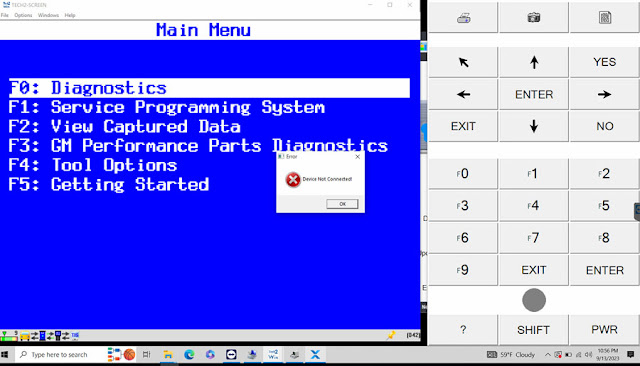
I got the vxdiag vcx nano gm tech2win software installed on a Win10 64bit laptop, software is installed but when run tech2win software, it will not communicate with the vehicle (2011 Chevrolet Colorado 3.7 4wd). Error device not connected. Any solution?
Solution:
VXDIAG Tech2win can be installed on 32-bit system ONLY. Better Windows 7 32bit system.
Some managed to install it on Win10 32bit, but some failed. Win7 is recommended.
VXDIAG Techstream Works on 2023 Lexus GX460
VXDIAG VCX NANO Toyota Techstream cable was confirmed working with latest Lexus GX460.
Here comes the latest review of vcx nano user:
"All the negative reviews have one common thing…user error. Anyone using Techstream knows you need an old junk computer that you disable the anti-virus software and keep it off the internet. Software works perfectly, unit arrived with the most recent firmware.
Software V18 works fine. Upgrade the FW before, if needed.
Worked PERFECT on a 2023 GX460, 2022 GX460, 2017 GX460, 2019 GX460 and a 2007 GX470.
MUCH better than the cheap cable that I previously purchased.
This worked right out of the gate and I reprogrammed my TPMS sensors and I turned off the seatbelt warnings.
This one has my seal of approval."
VXDIAG VCX SE BMW Firmware Error No Voltage Solution
Problem:
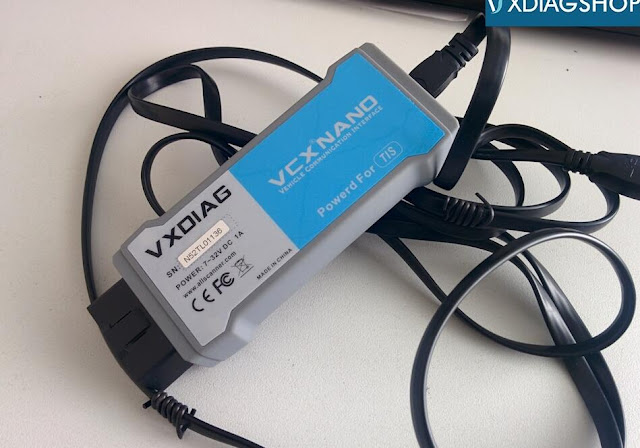
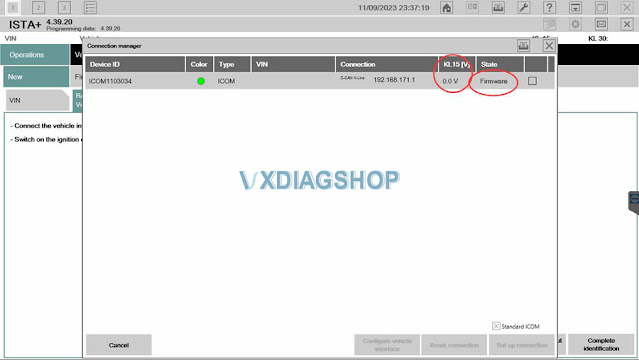
I set up ista-d 4.39.20 software with vxdiag vcx se BMW scanner, but it won't communicate with any vehicle. Only display ICOM firmware status icon and no voltage input. Any solution?
Possible reason:
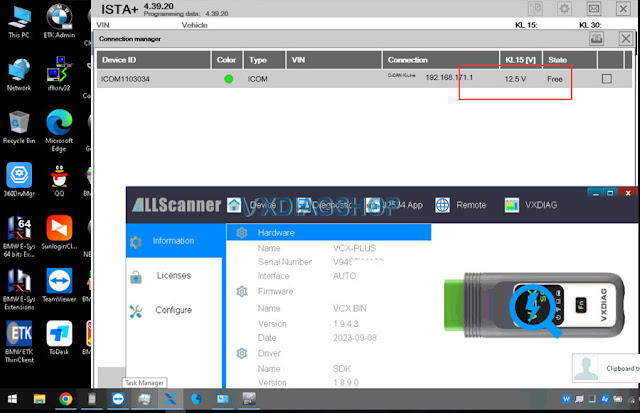
No voltage= device is no recognized by
vx manager.
Firmware status icon= ICOM driver issue.
VXDIAGSHOP
Solution:
Connect VCX SE with vehilce and laptop.
Reinstall BMW
ICOM driver.
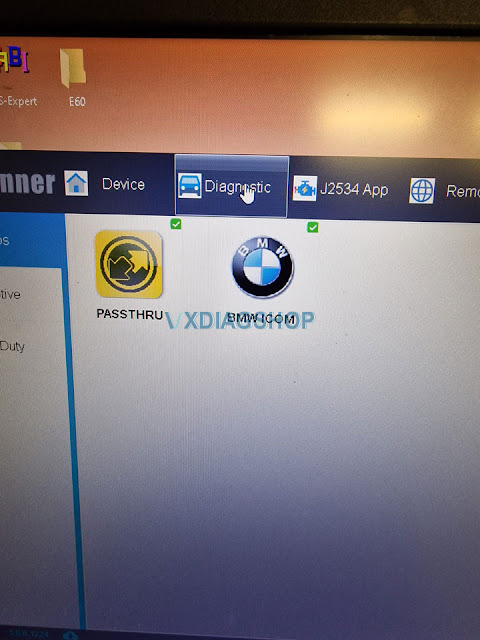
Update firmware.
If still not working, Restart
device and try again.
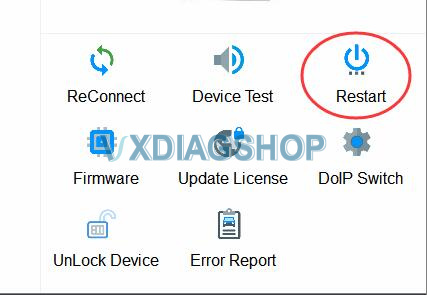
Feedback:
I tried to connect
device, reinstall ICOM driver and Restart, now it works.

GMC 2500 P0633 Fault Code Solved by VXDIAG and SPS2
It is a Gmc 2500 2011 Canadian model. The client got a key from the dealer but cannot get that security light closing after 10min.
Error code: P0633. He tried test unpluging battery one night, still not working.
DTC P0633 shows up active and the vehicle does not start because the new key is not programmed to the vehicle.

Suggestion:
VXDIAG VCX SE or VCX NANO interfaces will do the job for you. You have to be sure to select the model for GM vehicles.
In order to program the new key (as a first or master key, because you don't have the original master key) you need to put the PCM in learn mode, and this is only possible through SPS2 programming.
After that, you can program any additional keys without the need of SPS2 programming.
Feedback:
He paid for one VIN 2 years use of SPS2 and got the vxdiag tech2 clone.
Finally when you lost a key don't touch anything before getting all the tool you need vxdiag tech2win and register to sps2.
VXDIAG JLR Pathfinder Change JLR Car Configuration Guide
JLR Tutorial: how to change Car Configuration with JLR Pathfinder software.
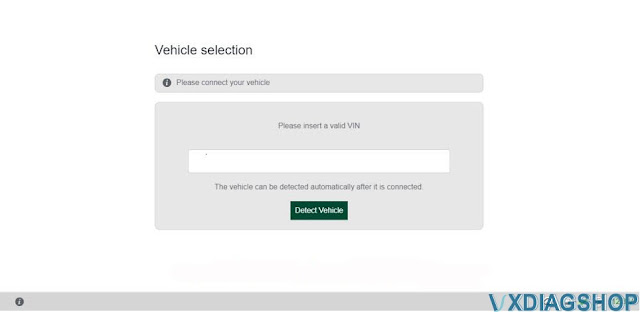

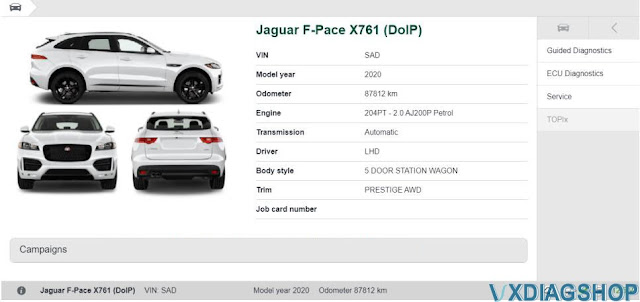


the PATHFINDER diagnostic application:

