VXDIAG Ford IDS V125 Unhandled Exception Solution
Problem:
I got a problem when installingVXDIAG
VCX NANO Ford IDSV125 on Windows 7 operating system.
It came with the
error below:
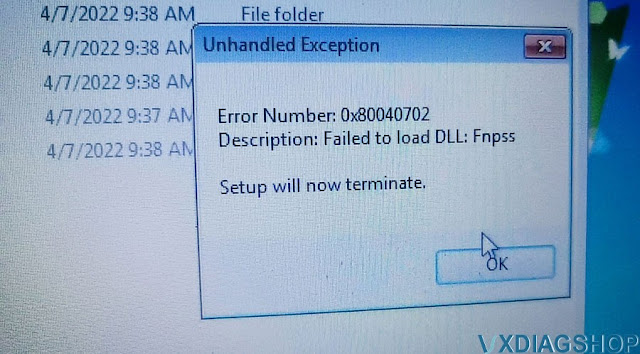
Unhandled Exception
Error Number: 0x80040702
Failed to
load DLL: Fnpss
Setup will now terminate.
Can you help?
Solution:
Make sure you have downloaded full IDS V125, VCI driver and IDS Patch.
Software can be downloaded free here
https://www.vxdiagshop.com/info/download/
Win10 is recommended for the 125 version. Change a Windows 10 laptopif has this error again.
VXDIAG engineer tested on windows 10 without problem.
Tip to install Ford IDS software:
1. Install Ford IDS-1**
2. Wait for the installation of Ford IDS – 1**,
and restart the computer
3. Install the Ford original VCI software_
1.0.0.10.exe
4. Install VX manager and Ford IDS driver
5. Wait for VX
manager and Ford IDS driver installation to complete
6. Connect VCX device
and install idspatch
7. Use idspatch to open IDs and start diagnosis.
VXDIAG VCX NANO 6154 Device Not Connect Solution
Problem:
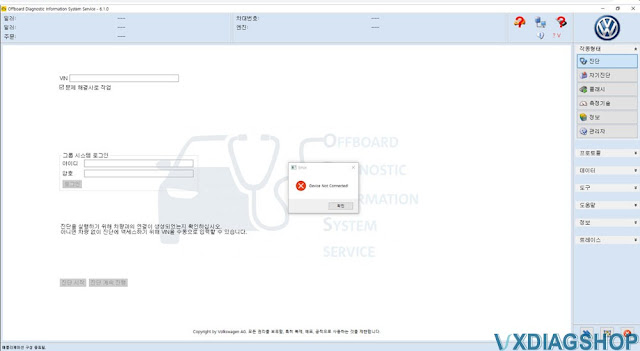
I got the ODIS 6.1.0, postsetup, vx manager all well installed. Then connectvxdiag vcx nano vw 6154interface, but software cannot detect the device.
Try to update VW 6154 driver, still the device is not connected. Any input?

Solution:
VXDIAG engineer is working on a new driver version to fix bugs.
The next version will fix this issue. You will be informed once the new driver version is released.
VXDIAG Ford Mazda IDS V125 Free Download
Allscanner VXDIAG both Ford and Mazda software was released to V125 on April 6th, 2022.
Software version:
Ford IDS V125
Mazda IDS V125
Support Online programming, we don’t provide online account
Device affected:vxdiag vcx nano ford/mazda USB version, vxdiag vcx nano ford/mazda WiFi version,VXDIAG VCX SE Pro,VXDIAG Full,VXDIAG VCX Plus 3 in 1etc
Operating system: Win7, Win8 and Win10
Free download Ford IDS V125
https://mega.nz/folder/6dwzgaJR#XW2q1xPdbgKV4XtZQqkB0w
Free download Mazda IDS V125
https://mega.nz/folder/iQp1UACZ#d4ey2cWHmaEMf9n2dTcTAQ
Free download Ford and Mazda IDS Patch
https://mega.nz/folder/OV4RRC6B#seCWP6UCzOPWEDYlQxZ1iQ
Ford IDS Installation:
1. Install Ford IDS-1**
2. Wait for the installation of Ford IDS – 1**,
and restart the computer
3. Install the Ford original VCI software_
1.0.0.10.exe
4. Install VX manager and Ford IDS driver
5. Wait for VX
manager and Ford IDS driver installation to complete
6. Connect VCX device
and install idspatch
7. Use idspatch to open IDs and start diagnosis.
Mazda IDS Installation:
1. Install mazdaids-1**
2. Wait for mazdaids – 1** installation to
complete and restart the computer
3. Install VX manager and Ford IDS
driver
4. Wait for VX manager and Ford IDS driver installation to
complete
5. Connect VCX device and install idspatch
6. Use idspatch to
open IDs and start diagnosis.
VXDIAG VCX NANO Techstream cleared 2019 Rx350 EPB malfunction
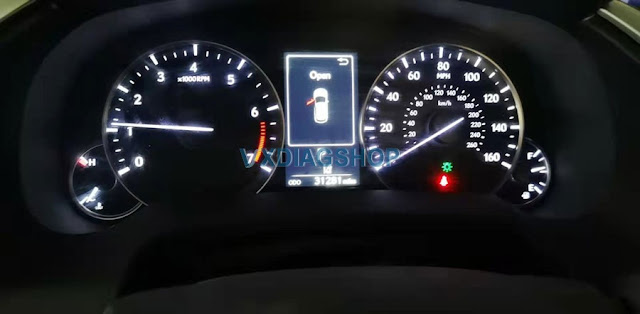
I am driving a 4th generation Lexus 2019 Rx350. My EPB malfunctioned after trying to replace the rear brake pads myself. I am looking for a good Techstream cable to reset EPB.
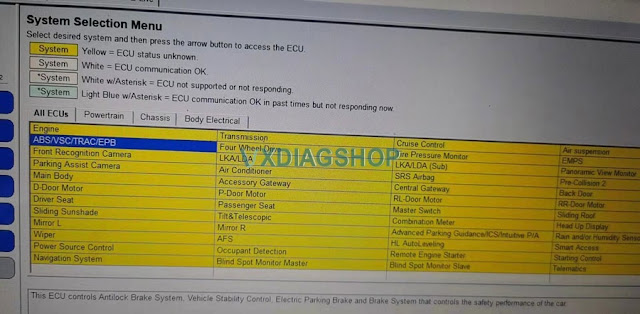
I read a lot of reviews, I got a VXDIAG VCX NANO for TOYOTATIS Techstream fromvxdiagshop.com$95+tax today. It is working perfectly. Windows 10 and Techstream work perfectly fine on my car. I installed the drivers and software onto a newer laptop with new drivers and their provided 15 series software and all features including the “customize” function worked flawlessly. I have successfully cleared the electronic parking brake malfunction. It’s perfect. The EPB is working now.
I also used it for programming a new key fob of my wife’s 2013 RX and to disable auto steering wheel tilting for another 2017 RX with no issue.
How to Solve VXDIAG VX Manager Offline Problem on VMware?
In theprevious postwe provide the solution tovxdiag vx manageroffline cannot renew license problem on real host machine. Here we share a customer solution on real/VMware machine if it is still not working by changing DNS to 8.8.8.8.
I think by “Offline” it means “unable to reach vxdiag website(s) on the
internet”. Try this:
1. On same pc (real or virtual) where you are running VX
Manager, open a web-browser, either GoogleChrome and/or IE.
2. In the
browser, verify you are actually on internet. One way is to search for “news”
and see if it brings up today’s news.
3. If not on internet at all, run the
internet troubleshooter (in settings on windows), and/or somehow get on the
internet. Maybe re-install VMware tools. Also verify time and date are correct.
I use “Mange: Virtual Machine Settings”: Options: VMware Tools: (enable)
“Synchronize guest time with host” (gives guest correct system time even if
guest not on internet).
4. Once on the internet, see if you open each of
these websites:
A: VXDIAG https://www.vxdiag.net
B: http://www.vxdiag.net/ (http not https) http://www.vxdiag.net
C: http://www.vxdiag.net/managecenter/download/vxdiag.zip
Note that A, being https, will have lock/secure icon by URL and if you cannot
reach A, then that website might be blocked by your DNS server as some files
there seem to contain malware. The malware is why the VXDIAG have you change DNS
server to 8.8.8.8, but you should then reboot and also do ipconfig /flushdns
like so:
Right click on the start menu and choose either Command Prompt
(Admin) or PowerShell (Admin) from the menu.
Type in the commandipconfig /flushdns
If 8.8.8.8 does not help, try setting primary and secondary DNS servers to 209.244.0.3 and 209.244.0.4 (works for me). Or take laptop to various public wifi spots until you find one that lets you reach A, B, and C.
Once you reach A, then you hopefully can also reach B and/or C. Note B and C, being just http (not https), will have “Not secure” icon, but ignore any warnings. C should offer to download vxdiag.zip file. On my win10-64 vm, with all updates and newest chrome, I am still able to download the vxdiag.zip file without problem. If you cannot download it in chrome, try internet explorer or edge, etc. If one browser allows download, temporarily set that as your default browser. For more info google “block some HTTP file downloads starting with Chrome 83” (or similar http file download topics).
WARNING: When all steps below are done, be sure to (re)set your default browser to Google Chrome, as the GM Techline folks warned me only Chrome works for TechLine Connect! (I did all steps below with Chrome as my default browser, but YMMV). I think the ability to download from http (not just https) websites is needed by VXManager to do firmware upgrade(s), Update license(s), etc, and if http downloads are somehow blocked, it gives you “offline” error. (Eventually I would think the VXDIAG folks would make everything available on https URL instead of just http.)
I would think once you can reach A, B, and C then VXmanager should no longer
display “Offline” error, and be able to do firmware updates. Use newest
VXmanager as of today 2022-04-02 is VX Manager 1.8.6.1224 (2021-12-24) in the
69.4meg vxdiag.zip file. Then repeat the firmware
update until it completes without error and you have newest firmware, which is
v1.9.0.0 as of today per update history at http://www.vxdiag.net/managecenter/fws/update.txt Repeat it
even if it says you already have v1.9.0.0 just to be sure. I would think the
licenses should all update as well… all 4 of my licenses say 203012-30 (8 years
from now). Good luck, and patience. Perseverance furthers.)
P.S. As others
found out, it may be best to try from scratch with new vmware virtual
machine.’
Any questions feel free to contact uswww.vxdiagshop.com