Program Opel Ampera SHVC with VXDIAG VCX NANO & Service Box
Problem:
Purpose:
re-program to remove the SHVC warning
Device used:
VXDIAG VCX NANO GM/Opel scanner
Procedure:
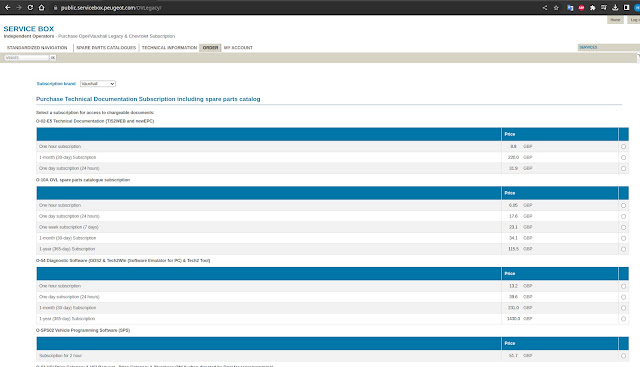
First of all, need to correctly register SPS on PSA Service Box.
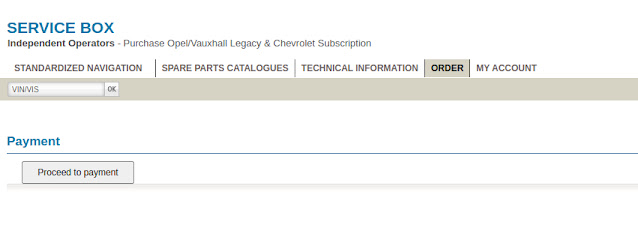
Register as a professional and can log in OK, if come to purchase SPS for 2 hours it requires an active VAT number, ignoring the warning requesting and complete yout details by adding the required VAT number, it then carries on OK to payment!

Then hook up vxdiag vcx nano to clear the shvcs fault.
Had a go at the reprogramming of the HPCM2 module today, and so far it has worked a treat, no more SHVC and the car is back to charging again.
It took nearly an hour to get SPS to work, but the actual programming time was only around 7 minutes. I used Windows 10 64 bit and Edge Browser. A few problems when starting SPS, lots of warnings that I didn't have various plugins. Wasted quite a lot of time trying to install and download these, specially the Java one as it is quite important, at least I thought it was. Unfortunately the Java download/install did't work as I kept getting the same warning when starting SPS. In the end I just installed the latest Java via the oracle website and ignored all further warnings, including the Java one.
Once that was done the SPS java start program downloaded (download.jnlp) and could be run OK to start SPS proper. I had a slight hiccough with my VCX driver, Windows 10 discovered it and loaded an FTI driver ( I use RS232-USB adaptors) so I thought that would be OK, but no, SPS could not see my VCX. Had to install just the VX Manager to make it visible to SPS, after that it worked very easily. Once programmed the MIL was still on, and Torque Pro read a DTC for a transmission error I believe, clearing DTCs with Torque Pro cleared that and on a power cycle the MIL went out.
A better order would have been, install Java (32 bit) and VX manager (order here not important, but do run VX manager to verify that VXDIAG VCX NANO interface is working and doesn't need updating.), then subscribe, click SPS (large Icon), ignore warning for not having plugins, download the SPS java web starter app (click button), double click or run this app, and once this downloads the SPS app and it is started, it gives instructions to connect the interface to the car. I did not install the GDS2 and Techwin on this laptop with the normal HDD fitted, I put in another HDD then installed a clean Windows 7 Pro for the GDS2 etc diagnostic apps.
How to Install VXDIAG PSA Diagbox 9.85 Software?
Download, Install and activate Peugeot Citroen DS diagbox 9.85 software for VXDIAG PSA diagnostic scanner.
Free download Diagbox 9.85 and PSA VCI Driver for VXDIAG
Version: PSA Diagbox 9.85.
Interface language: Multilingual
Supported
OS: Windows 11 / Windows 10 / Windows 8.1 /Windows 7
Processor: Multi-core
Intel Series or above, Xeon or AMD equivalent
RAM: 4GB (8GB or more
recommended)
Free Hard Disk Space: 4GB or more recommended
Features of Diagbox V9.85
V9.85 requires no activation, direct
installation, no VM required. Run fast, save time and money. (Easy and quick
installation.)
V9.85 works for Citroen/DS
Automobiles/Peugeot/Opel/FengShen.
V9.85 functions: Diagnosis, Reset,
Adaptations, Telecoding of modules….
V9.85 can be used on as many machines as
you want so it is not limited to one PC.
V9.85 can work with any lexia3 /
lexia XS/ VXDIAG PSA
How to Install and Activate Diagbox 9.85 for VXDIAG PSA?
Before installation, make sure PSA license has been activated to your vcx se or vcx doip.
Install DiagBox V9.85 setup as administrator
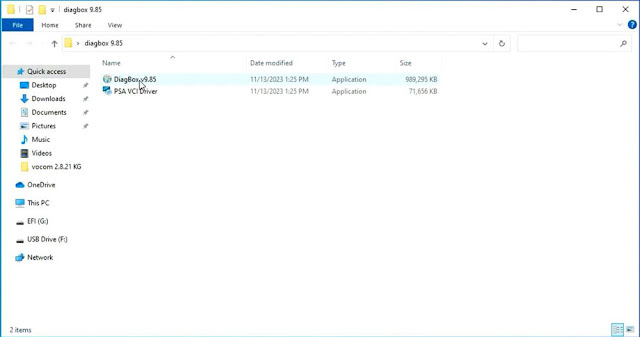
Contact vxdiagshop.com to send you serial number for activation by remote
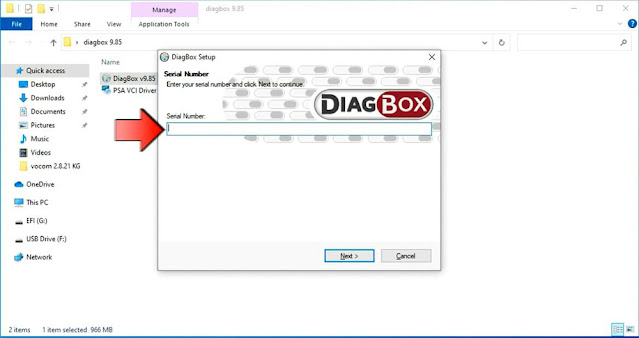
Input S/N and continue
It takes 30 minutes to 1 hour to install Diagbox
software until finished


Change this driver name on the desktop to 'driver'
Run driver as administrator to install driver


Driver install ok, plug vcx se or vcx doip device with laptop.
Install PSA VCI Driver
It is a separate driver for PSA. You don't need to install vx manager or PSA driver in vx manager
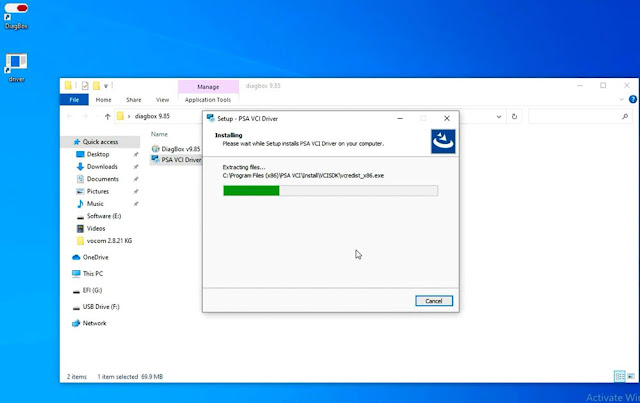

Open PSA VCI Driver
Check device is detected by VCI Manager
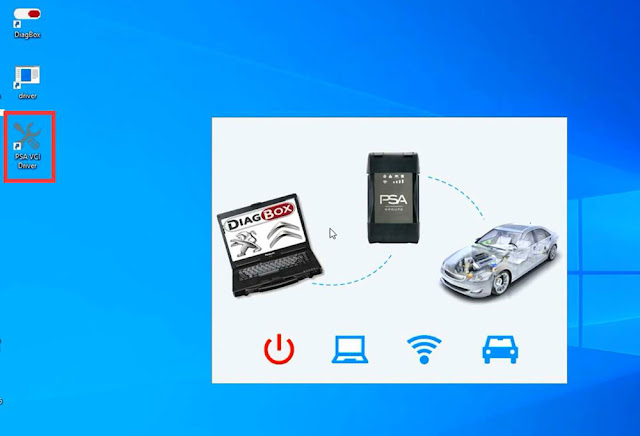

Run diagbox software on desktop

Change language in setting

Software is ready to use


VXDIAG VCX SE PSA Diagnox VCI Not Connected?
Problem:
I got the PSA diagnox license activated to the vxdiag vcx se unit. After installing diagbox 9.150 and PSA driver in vx manager, when connecting vcx se with vehicle, it said VCI was not connected. Any clue?

Solution:
Diagbox 9.150 requires original PSA driver. Better use diagbox 9.8* version. 9.8* versions work fine with vxdiag driver.
Vxdiagshop.com provides diagbox 9.85 software with 1 time free activation.
Contact our customer service for diagbox 9.85 and activation if you need it.
Possible to Download VXDIAG Firmware to V1.6?
Question:
Hi is there a way to downgrade my vxdiag vcx se version to 1.6 and back to new version without loosing my license or hardware?
Answer:
No, it is not possible once you update you can't go back.
VX Manager
FW1.8+ has a different license. You will lose all licenses after
downgrading.
You can downgrade with loosing licenses.
After return back to
the FW1.8+ licenses restored from the VXdiag server.
Newly installed licenses
completely overwrite old.
Actually licenses for the VXDiag SE FW1.6 should be the same as VXDiag
nano.
Better don't downgrade firmware.
VXDIAG PSA vs Lexia3 Diagbox
What's the difference between VXDIAG PSA and Lexia3 diagnostic interface for Peugeot Citroen DS?
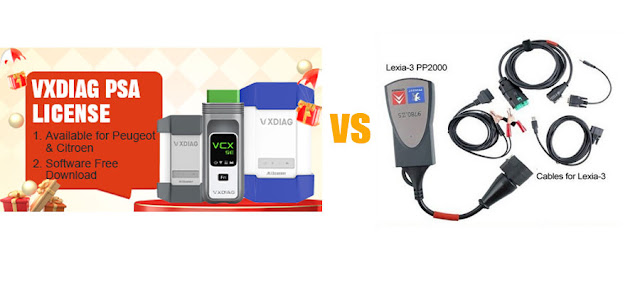
| Item | VXDIAG PSA | Lexia3 original or clone |
| Software | Diagbox | PP2000 Diagbox |
| J2534 Passthru | Yes | No |
| -2006 Kline models | – | Yes |
| 2006- CAN BUS models | Yes | Yes |
| Connection | USB, WiFi, LAN | USB |
| Car brand | Peugeot Citroen DS Opel | Peugeot Citroen DS Opel |
| License | Able to add other car brand license to the device | – |
| Online service box | Yes | Yes |
VXDIAG PSA can be used as OEM emulator to emulate diagbox and also a J2534 pass thru device for OEM programming.
Lexia3 works with PP2000 for older Kline models, VXDIAG only for 2006- CAN BUS models.
Lexia3 only USB connection. VXDIAG also connects via WiFi and WLAN.
Both works with online service box for module updating/reprogramming.