VXDIAG GM DPS Software User Manual
2023.10 VXDIAG GM GDS2 software comes with bonus DPS (Development Programming Tool) 4.52 software.
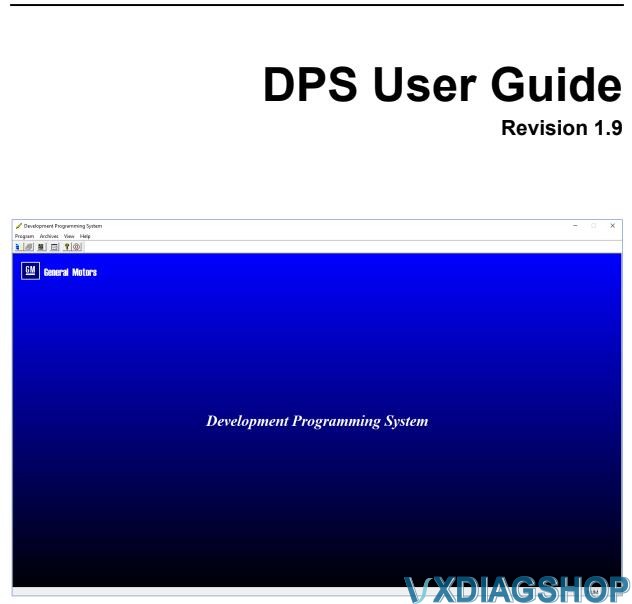
The Development Programming System (DPS) application is a 32-bit Windows-based application used for the flash programming of General Motors electronic control units (ECU) and verification of Service Programming. DPS is a development tool intended for the GM engineering community and ECU suppliers. It is designed to interface with SAE J2534-compliant hardware interfaces during the communication process.
If you are looking for a pdf manual on how to use DPS, check here: DPS User Guide.
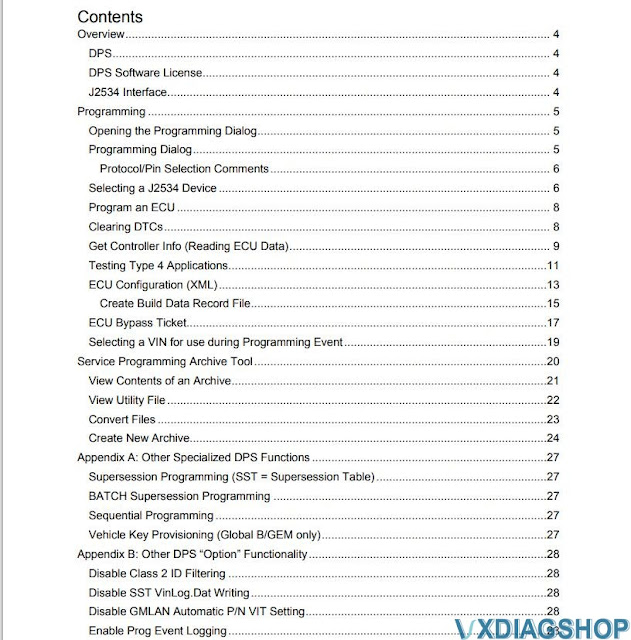
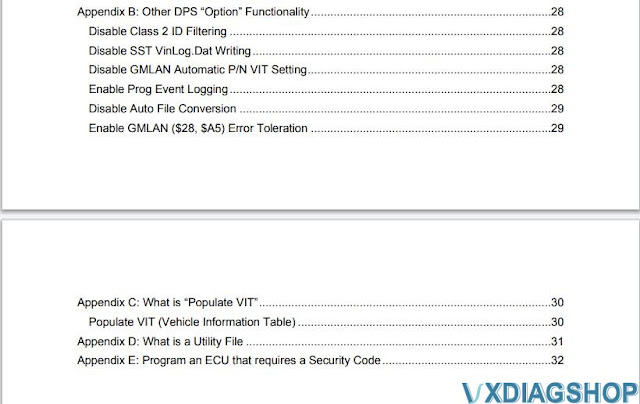
Contents including:
Check also:
VXDIAG VCX SE BMW Not Work with ISTA 4.44.30?
Problem:
The VXDIAG
VCX SE BMW adapter purchased will not work with current ISTA 4.44.30. ISTA
requires a firmware update.
VX Manager indicates that the firmware in the
adapter is up to date.
So the question now is: will this problem be solved in
the future? Or just use the old ISTA version?

Solution:
ISTA 4.44.30 software version is too new. BMW driver is not ready for this version.
Use older ISTA version (4.41.30) instead.
VXDIAG engineer will release new BMW driver in the near feature.
How to Open VXDIAG JLR SDD and Pathfinder Software?
Here are useful tips to run VXDIAG JLR SDD & Pathfinder software from desktop.
For JLR SDD:
First run JLR SDD Offline patch (file name without date), run SDD, then close.
Then run JLR SDD Offline patch (file name with date) to open SDD software.

For Pathfinder:
Run New JLR App icon on desktop directly to open Pathfinder software.

Pathfinder software is huge and not available to download for free.
Check JLR SDD + Pathfinder in HDD format.
https://www.vxdiagshop.com/wholesale/vxdiag-vcx-se-jlr-hdd.html
VXDIAG Subaru SSM3 Error Code 2 Solution
Problem:
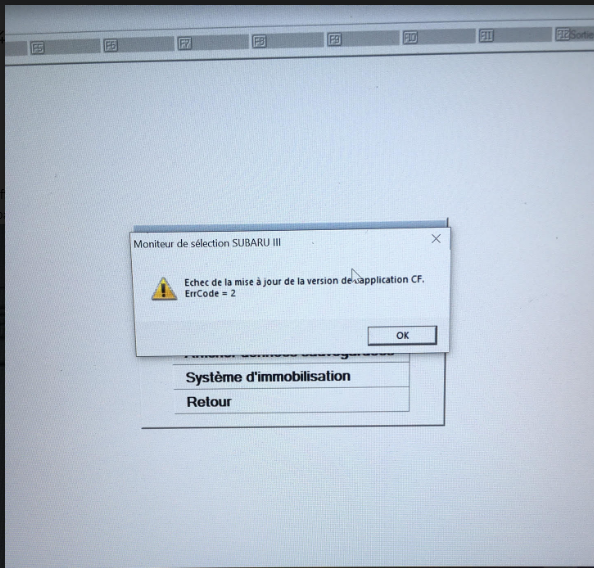
I tried to run VXDIAG Subaru SSM III software from patch, but it gave an error
"Failed to update the CF application version. ErrCode=2"
How to fix it?
Solution:
Just press 'OK' button to proceed. Ignore this error message.
VXDIAG GM "GDS2 is Not Communicating with Device" Solution
Problem:
I got the vxdiag vcx nano gm gds2 software installed, open gds2 to diagnose vehicle, it failed to connect.
Error GDS2 is not Communicating with the Device.
And I don't see mdi or vxdiag device option. Any solution?
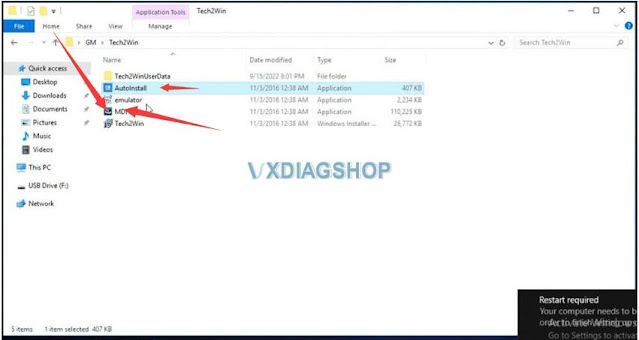
Install the MDI driver, and there will be an option to select the device.
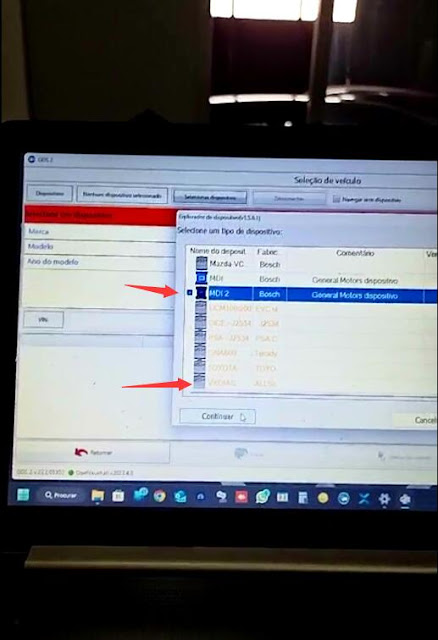
If use VXDIAG VCX NANO GM, select the device type as MDI or VXDIAG.
If use VXDIAG VCX SE series devices, select device type as MDI2 or VXDIAG.
If there is a VXDIAG device option, select VXDIAG J2534 as your first choice, otherwise choose MDI2 (vcx se) or MDI (vcx nano).