VXDIAG VCX NANO Volvo VIDA 2014D Reviews
Today, I’d like to share some reviews on the VXDIAG VCX NANO for Volvo.
First of of, let’s check some VXDIAG VOLVO reviews.
Review 1:
Great device for connecting to VIDA to diagnose my Volvo. Only concern is in the ad it says it compatible with Windows 10. Which VIDA is not. Was able to install VIDA via bootable USB. Other than this inherent issue, nothing to do with this device. Works great. Connects everytime and installed via their software. Do recommend, much more cost effective option and delivers faster than a DICE unit.
Review 2:
The disc they provided doesn’t seem to work well but with some googling you’ll find a pre-setup VM or a easy installer that lets you install this on windows 10. Some people complaining about it not being detected. You need the drivers. Go and download VX Manager. It works like a charm and has already saved me a tone of money with diagnostics.
Review 3:
It’s great. Just be wary that while this will allow you dealer level access to your Volvo, little to no documentation is provided on how to get it going. You need to be computer literate and have great Google skills to get this working. It probably took me a solid 4 hours to get a laptop configured properly, but once I got it working it’s been fantastic.

Review 4:
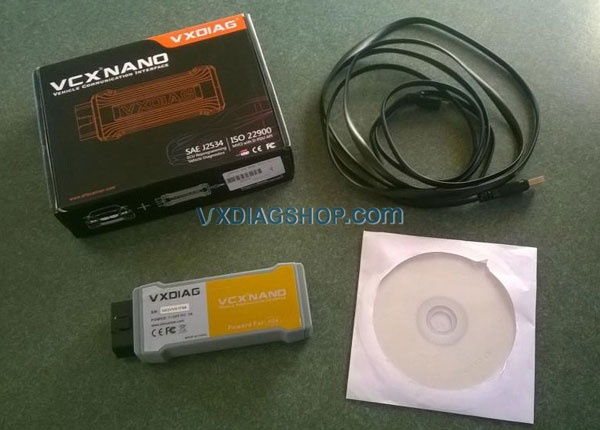
I recently bought a VXDIAG VCX NANO device which can be used with Volvo’s VIDA software to communicate with Volvos from the early 2000s up to 2014 or so.
The device is claimed to be compatible with Volvo’s DICE hardware.
I chose to buy one of these rather than a DICE or DICE clone because these are a bit cheaper than DICE clones, and I have read that many people have had problems with faulty DICE clones.
I had to wait two months to receive the device from China, but this is fairly typical of deliveries during COVID-19 times.
I first tried to use it with a VIDA installation I had already done using a virtual machine image. It didn’t work, I just kept getting an error message: “ERROR: SDK GetProcAddress!”
Eventually, I decided to actually follow instructions and installed VIDA 2014D from the installation DVD that came with the device. It worked first go.
I later tried again to get it working on the VM but without success. I suspect the problem may be due to the VM running Windows 10 and being 64-bit. The recommendation for VIDA is Windows 7 Professional 32-bit.
Using VIDA I can connect to the car and read its details, fault codes and live data. I can also use the activate feature to turn on and off various systems for testing.
I have not tried any programming.
I also used the device with VDASH2 and it also works fine for reading information and fault codes. I have not tried any programming with VDASH2 either.
So aside from not being able to comment on programming, I can recommend the VX NANO as a cheaper alternative to a DICE clone. Just follow the instructions and know that it may not work on a VM.
VXDIAG DoNet Remote Device ID Invalid Solution
Allscanner VXDIAG DONET remote diagnosis requires a 15-digit remote device ID to connect remote device.


If your device is connected to phone HOTSPOT, you will see your device information, and find “DONET Remote ID”, click it to get the ID. Input the ID when you connect device on vx manager.


Skype: vxdiag.com
Whatsapp: 0086-18064450969
How to Solve VXDIAG Subaru Error License for function
Here have collected the corresponding solution for VXDIAG SUBARU SSM III error license for function. Now, let’s look below.
Error: Received a VXDIAG SUBARU SSM3 recently, but I found no license in the device when I tried to add Honda and Mazda licenses. Besides, I got the message “Error License for function: SUBARU 11:34:28Error License for function:”. Look at the following pictures:


Solution: It’s suggested that you take the following steps:
- Update VX Manager from http://www.vxdiag.net;
- Download SSM3 & SSM4 2020.7 software and Subaru SSM3 patch;
- Pay for the licenses that you want to add after mounting all the software mentioned above;
- Give us your serial number, then we’ll add Honda and Mazda licenses for you.
Please be informed: you can only work on Win7, Win10 32 or 64 bit.
Download SSM3 & SSM4 2020.7 software:
https://mega.nz/folder/ucIEhR7J#QUGAbagyLLsCslE585Fu2Q
Download Subaru SSM3 patch:
https://mega.nz/folder/zJASHJ6b#FgXQQluqoFyVSKkQ2k5KMw
Read related article: How to Install 2020.7 VXDIAG Subaru SSM3 SSM4 on Windows 7?
2020.7 VXDIAG VCX NANO GM GDS2 Installation
Latest version 2020.07 GDS2 software has been tested working with vxdiag vcx nano gm USB and WiFidiagnostic interface. Here vxdiagshop.com provides software download and installation tutorial.
Software version:
GDS2 v22.1.00900
GM Global v2020.7
Tech2Win 16.02.24
Multi-language: German English Spanish French Italian Dutch Portuguese Veitnam Russian Thai Japanese Chinese Korean
Operating system: GDS2 Win7 32bit, (free to try Win8 Win10); Tech2Win Win7 32bit
Free download 2020.7 VXDIAG GM GDS2 Tech2win
https://share.weiyun.com/CNl4ztK5
password: xwynde
(If have problem download software, contact our customer service for fast download)
How to Install vxdiag gm gds2 tech2win 2020.07?
Note: Direct install newer version VX Manager may cause “no default device detected” error. Require install older version vx manager 1.4.1 then install vx manager 1.8.1.
Software link contains both versions of vx manager.

Download software


Open GDS2AutoInstall folder and install GDS2AutoInstall setup

Press Start to load MDI.exe, GDS2 Javeinstall.exe
Open Tech2Win folder
Install AutoInstall

Choose Install this driver software anyway

Teh2Win install complete
Install VX Manager 1.4.1


Select GM GDS2/Tech2win program to install

Finish install VX Manager setup, press Finish
Open VX Manager 1.4.1, check device information
Then open VX Manager 1.8.1

Select GM software to install
Scanning for new hardware

USB serial port was set to COM4
Device driver software installed successful
Finish install VX Manager 1.8.1, press Finish
Now enable network connection of your computer
Run VX Manager on desktop

Detect hardware information
Go to Diagnostic Tab
Install Passthru and GM GDS2/T2W driver respectively


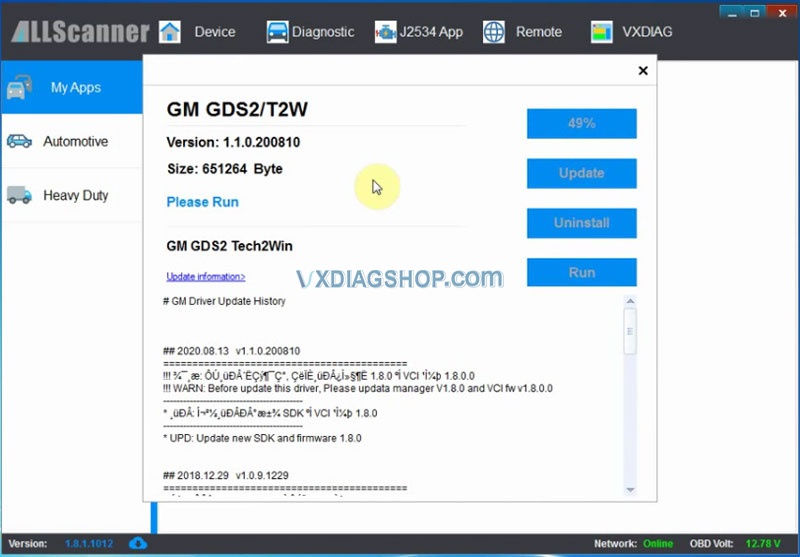
Open GDS2AutoInstall folder
Open GDS2Install folder
Copy, paste and replace GDS2 from GDS2Install folder to Local Disk C:


Then run GDS2 on C://
Accept windows security alert

Select GDS2 language
Come to GDS2 diagnostics interface

Press Diagnostics icon

Select interface as MDI 2 and continue

VXDIAG GM GDS2 supports latest GM up to 2021
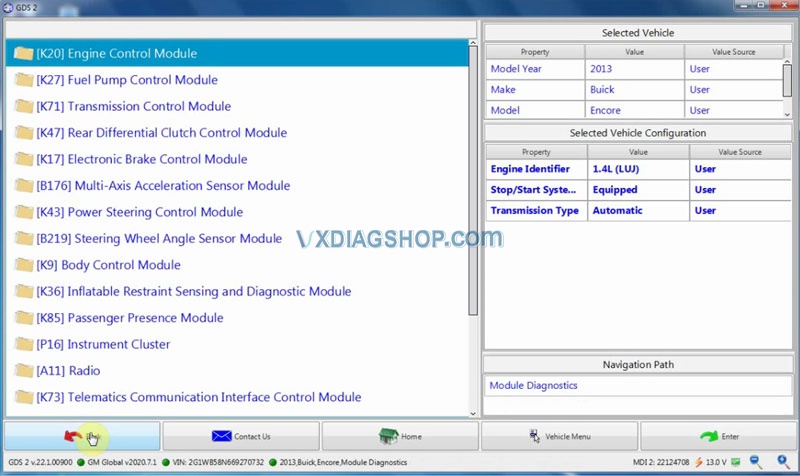
GDS2 software is ready to use
Tech2win software works as well.


https://www.vxdiagshop.com/service/install-2020-7-vxdiag-gm-gds2-software.html
Free Download DTS Monaco License for VXDIAG benz C6
Here’s the working solution to vxdiag benz c6 doip vci DTS Monaco engineering program “No licensed hardware available” error.
Error image attached:

Solution:
Free download DTS Monaco license for vxdiag c6 benz
https://mega.nz/file/lNhyQQTT#WpDnu6VDKxOI8XyBEe9XihZLYqi94Y_9ugtRPc2FpFQ
Connect c6 with vehicle and computer, download the license above.
Now DTS Monaco works properly.
