How to Set up VXDIAG VCX SE as J2534 Passthru?
VXDIAG VCX SE series diagnostic interface can also be used as a J2534 Passthru device for OEM online programming.
How to switch vxdiag vcx se to J2534 passsthru device?
Connect vcx se with laptop via USB
Run VX Manager, Go to Diagnostic Tab- Applications
Delete brand driver in vx manager
For example, if need to use vcx se Benz as MB Xentry Passthru for both diagnostic and coding, delete Benz C6 driver. If you want to use Vxdiag passthru with Mercedes you need to buy a full Mercedes license. Vxdiag passthru license is not a general j2534 license for all brands.


Same procedure goes to other brands
Reinstall vxdiag driver again if need to carry out diagnosis function.
Example:
Ford and Mazda works fine.
vcx se benz is working with Ford FDRS.
test on a 2019 Ford Focus C519E 1.5L sedan

vxdiag vcx nano and vcx plus series can also be used as pass-thru devices.
Reference:
Use VXDIAG VCX NANO on Honda as J2534 Passthru
How to Connect VXDIAG VCX SE with BMW E-sys?
How-to: set up and connect BMW F series coding software E-sys with VXDIAG VCX SE for BMW diagnostic scanner.
Setup requires USB connection
Make sure the USB cable is going all the way in.

Connect VCX BMW with vehicle and laptop via USB cable

Open VX Manager to check device is well connected
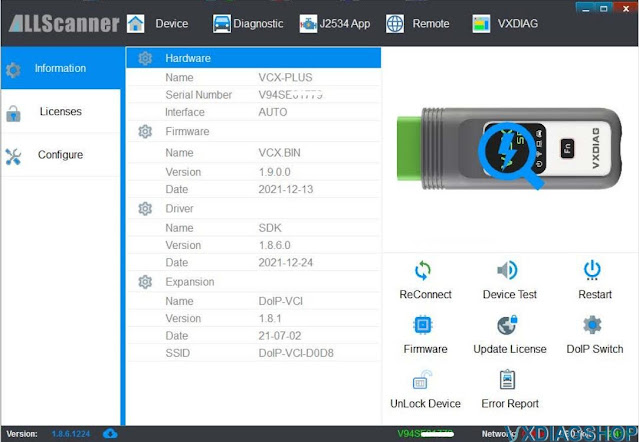
VX Manager detects serial number, firmware driver version etc, vcx se bmw is well connected.

Turn on DoIP Switch
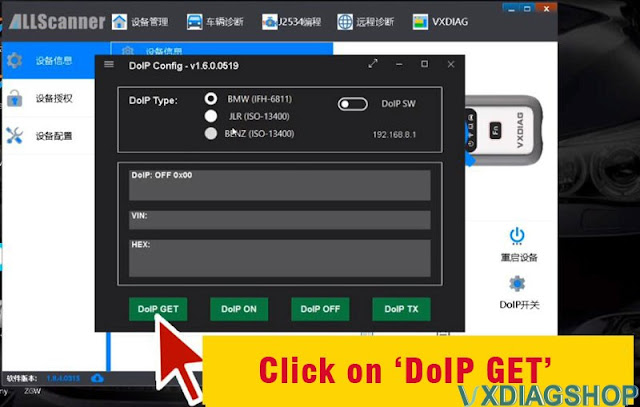
Press DoIP GET button

Press DoIP ON button

DoIP is turned on. Run E-sys software on the desktop.

Press Connect icon
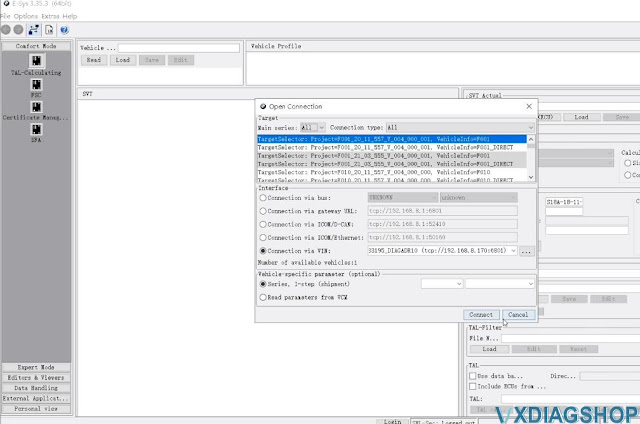
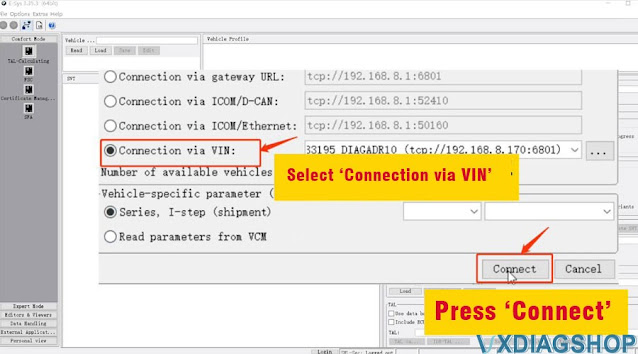
Select ‘Connect via VIN‘ and press ‘Connect‘
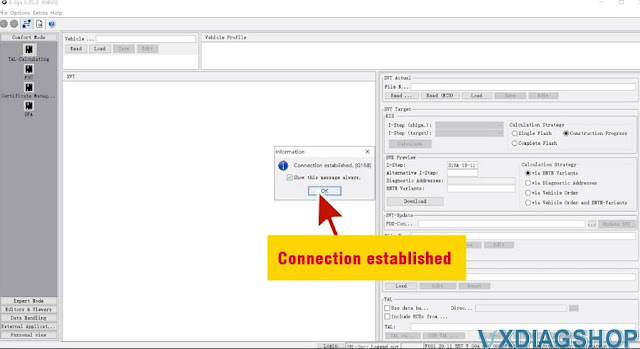
Connection established

Go to Read-FA- Activate FA
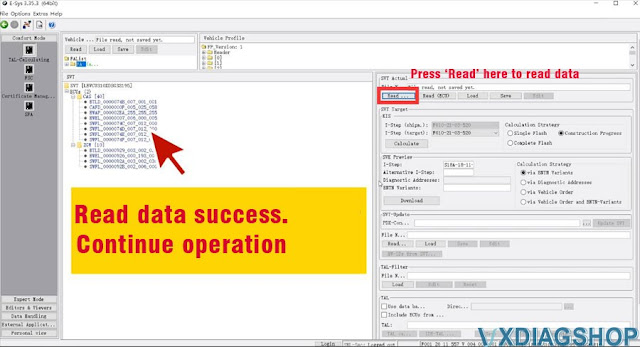
Press Read on the right SVT Actual column to read data
Read data success. Start coding your vehicle with E-sys software.
Video reference:
Read also: How to connect INPA software for VXDIAG VCX SE BMW?
How to Solve VXDIAG benz Connect Error No caesar File?
Here comes the solution of the vxdiag benz C6 (as well as vcx se benz) connection errors.
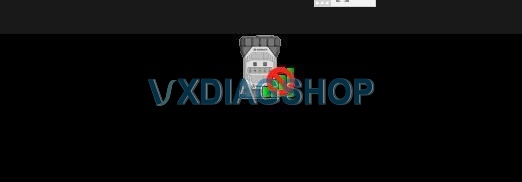
vx manager can see my device, but the device icon remains unconnected.

Others can solve it by installing the 2021.03 driver. but it still shows error ‘Connect error CAT cannot open caesar.cfg file when trying to install 2021.03 C6 driver.
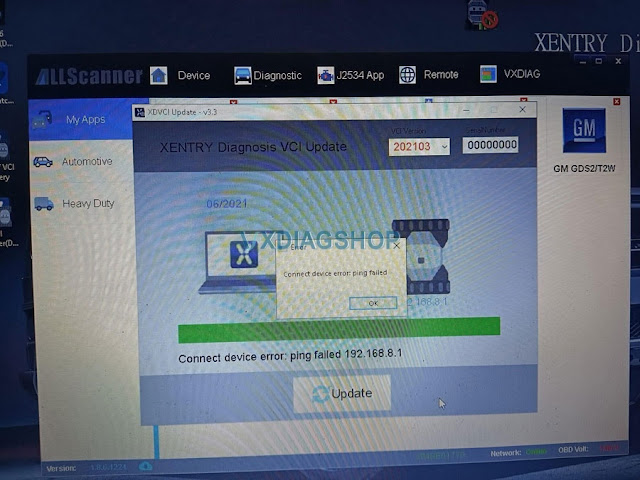
Delete and reinstall vx manager, still reported ‘Connect device error: ping failed’
WiFi connection no luck either.
Customer’s Solution:
Uninstall VX and vci manager totally
Then install old VX manager version inclusive Daimler Driver
Then reset the vcx se
After this updated the VX manager to new version but without Daimler Driver.
The approach is indeed a method that can be referenced.
Contact our customer service if still not working.
VXDIAG VCX SE BMW ISTAP- 3.57 Cannot see Device Solution
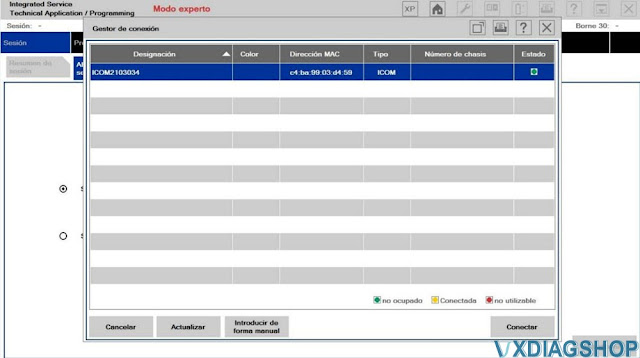
Problem: I have a Vxdiag vcx se with BMW license. serial number V94SE0****. With Ista D it works correctly. Ista P version 3.57.1.003 does not recognize the interface.
Reinstall vx manager 1.8.6 but still no luck.
Is there any process to be carried out so that it recognizes the interface?
Error images attached:
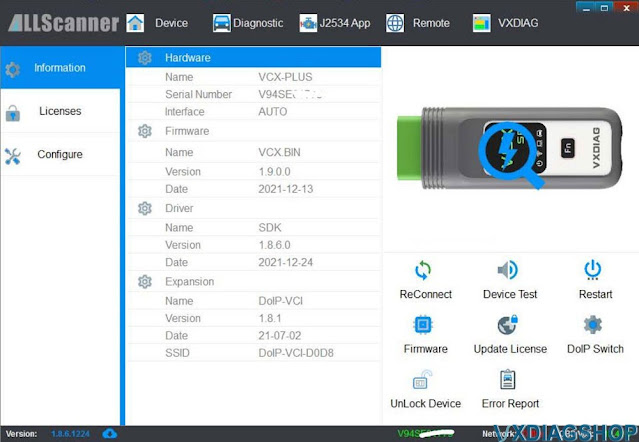
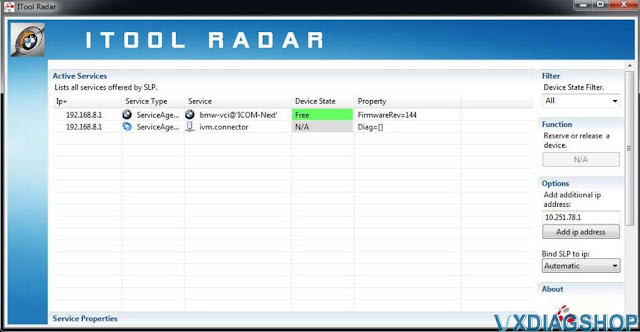
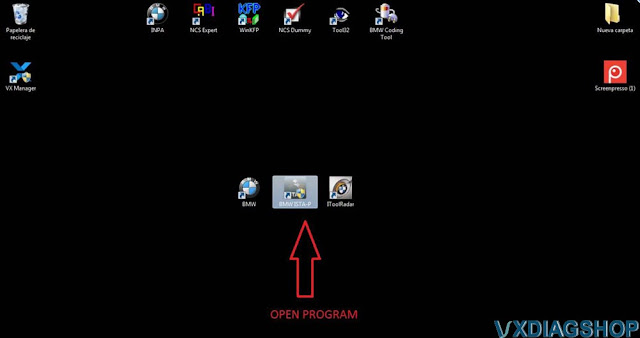
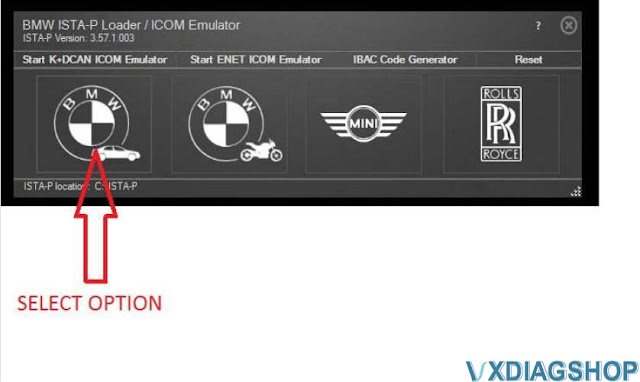
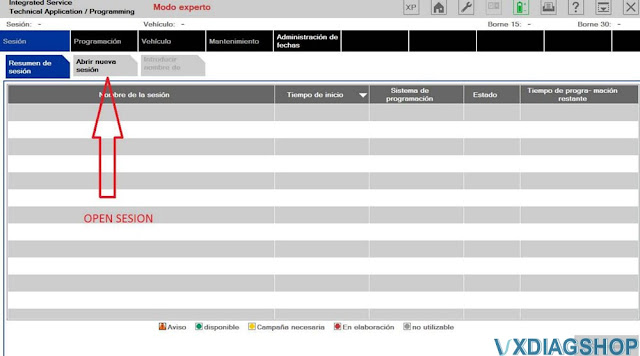
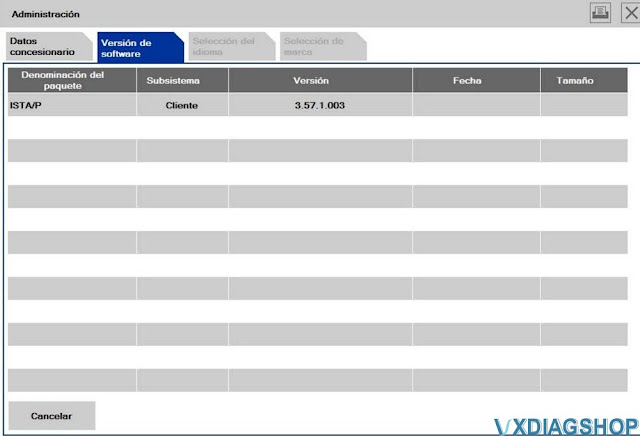


Vxdiagshop.com working solution:
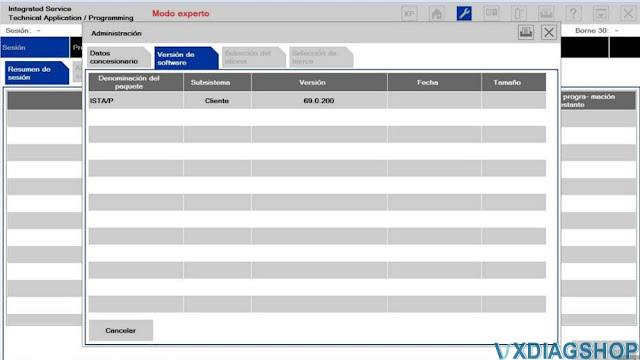
ISTA-P 3.57 software version is too old. Actually vxdiag device use ista-p V68.0.800. Try the newer version ISTA-P.
VXDIAG VCX SE BMW ISTA-D 4.28.22 ISTA-P 68.0.800 Software 500GB HDD
Feedback:
I tested version 3.69 ista-p (69.0.200). It recognizes the interface now. Thanks.
VXDIAG Subaru SSM3 Software Update to V2022.01
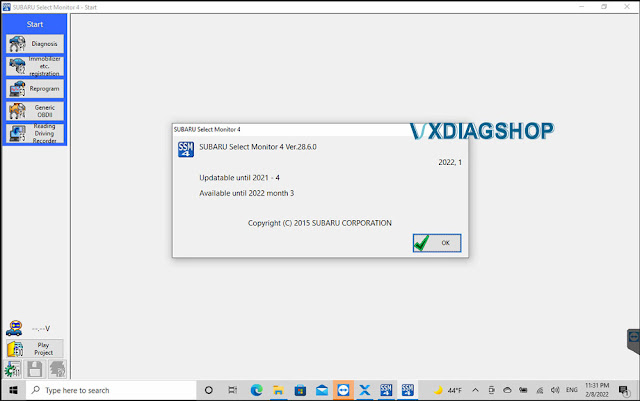
2022 newer version V2022.01 Subaru diagnostic tool software has been tested and verified working without issue.
Software version: SSM3 2021.01; SSM4 V28.6.0; FlashWrite2 V1.3.9
Operating system: Windows 7, Windows 8 and Windows 10
Compatible device: VXDIAG Subaru Multi Tool, VXDIAG VCX SE Subaru
Language: English, German, Spanish, French, Italian
Free Download VXDIAG Subaru SSM3 SSM4 2022.01 Software
https://mega.nz/folder/ucIEhR7J#QUGAbagyLLsCslE585Fu2Q/folder/KcIiBThY
Contains: SSM3 2022.1; SSM4 V28.60; FlashWrite2
Free Download Subaru SSM4 Patch (Required)
https://mega.nz/folder/zJASHJ6b#FgXQQluqoFyVSKkQ2k5KMw
File including:
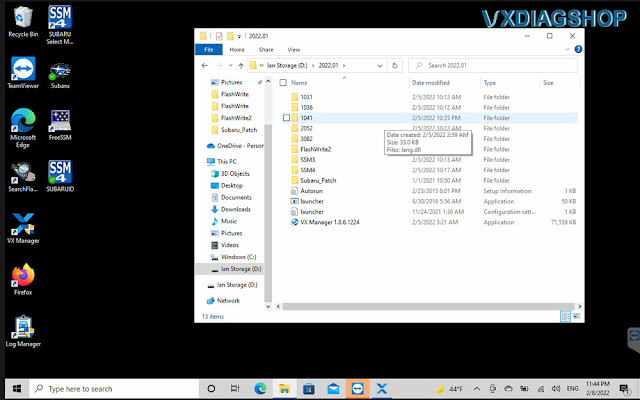
SSM3 V2022.01
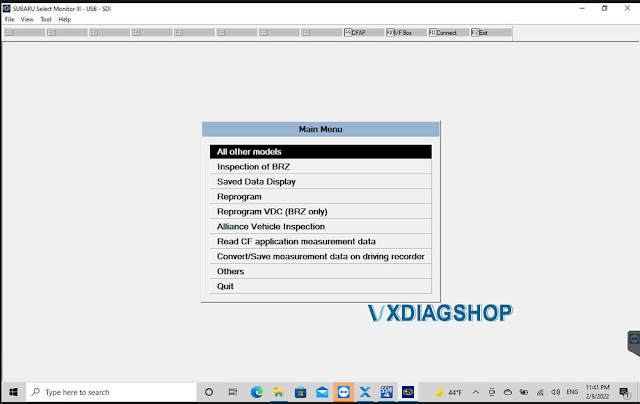

SSM4 V28.6.0
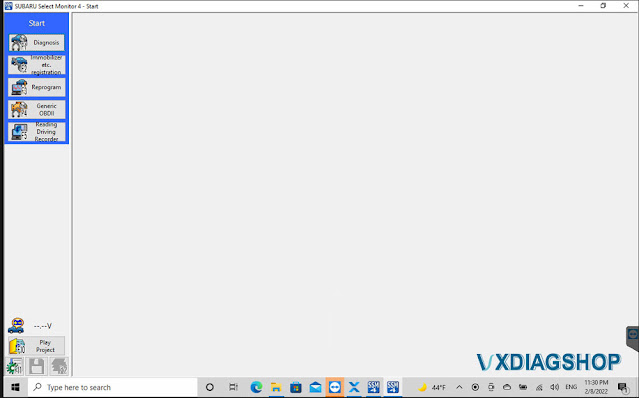
Installation Steps:
Install FlashWrite setup
Install SSM3 setup
Install SSM4 setup
Install VX Manager
Run Patch
Software installation guide is the same as the previous 2020 version, check
http://blog.vxdiagshop.com/2021/01/06/install-2020-7-vxdiag-subaru-ssm3-ssm4-on-windows-7/