CCF Tools 4.6+ Seed Code Calculator for SDD Pathfinder
New 2022 JLR CCF Tool v4.6 Editor + Seed code calculator working on SDD V163 and Pathfinder V374 are available on vxdiagshop.com.
This is for professional people and they know what's this for and how it used for programming ECU.
Software is huge, in 500GB HDD format.
Operating system: Win10 64bit
Software including:
JLR SDD V163
Pathfinder V374
Seed code calculator
CCF Editor 4.6
VBFTool
Car Config Edit
SDA 4.2.0
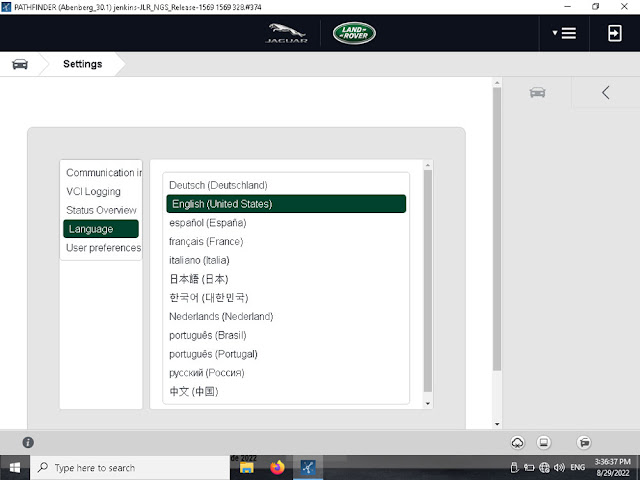
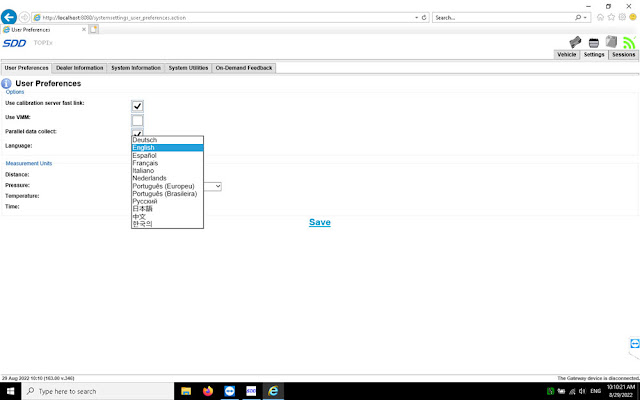
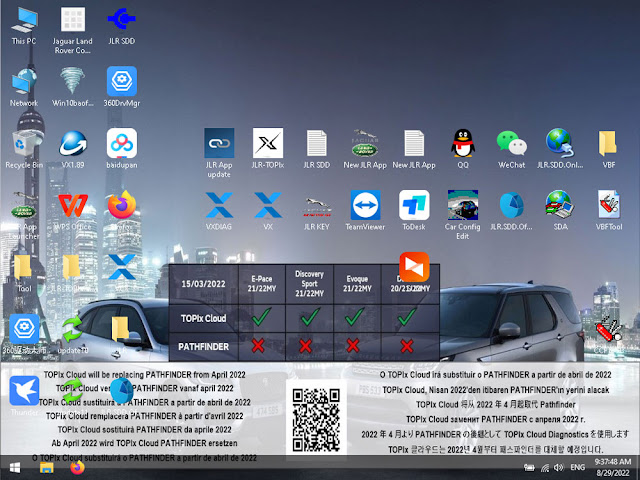
Desktop
CCF Tools 4.6
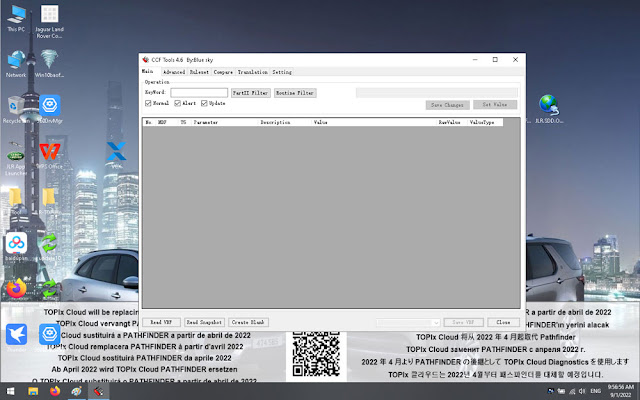
- CCF Editor for all JLR vehicles.
Can be used with either SDD or Pathfinder software it can be used to edit the CCF file which can then be uploaded to the vehicle using SDD or Pathfinder.
- Vehicles Supported:
- L538/2015
- L538/2016
- L538/2017
- L538/2018
- L550/2015
- L550/2016
- L550/2017
- L550/2018
- X260/2016
- X260/2017
- X260/2018
- X760/2016
- X760/2017
- X540/2018
- X760/2018
- L494/2017
- L494/2014
- L494/2014.5
- L494/2015
- L494/2015.5
- L494/2016
- L405/2014
- L405/2014.5
- L405/2015
- L405/2015.5
- L405/2016
- L405/2017
- L462/2017
- L560/2018
- X152/2016
- X152/2017
- X351/2016
- X351/2017
- X761/2017
- X761/2018
- L405/2018
- L494/2018
- L462/2018
- L462/2021
- L663/2020
- L663/2021
- X260/2022
- L560/2022
- L551/2022
- * Jaguar Vehicle Lines.
- Supports all SDD supported VBF files.
- Please note for Vehicles before approx 2010 for LR and 2008 for Jaguar values EUCD and MultiCAN are not used and may show odd data, for all vehicles after 2010 and Pre 2020 all parameters are used.
- Most vehicles 2020/2022 and newer do not use T5 values so these are not shown in the new version.
- SEED KEY CALCULATOR (SDD engineering mode access codes)
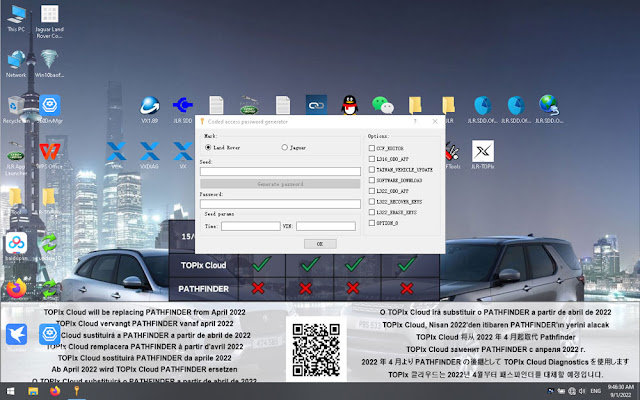
- Options available for engineering mode password calculator:Land Rover/Range Rover.
- CCF Editor
- Taiwan Vehicle Update
- Software Download
- L316/L322 Odometer
- L322 Recover Keys
- L322 Erase Keys
- Option8
- Jaguar
- VIN Bypass
- VID Block Eitor
- CCF Editor
- Software download
- X150/X250/X351Odometer
- X351 Recover Keys….
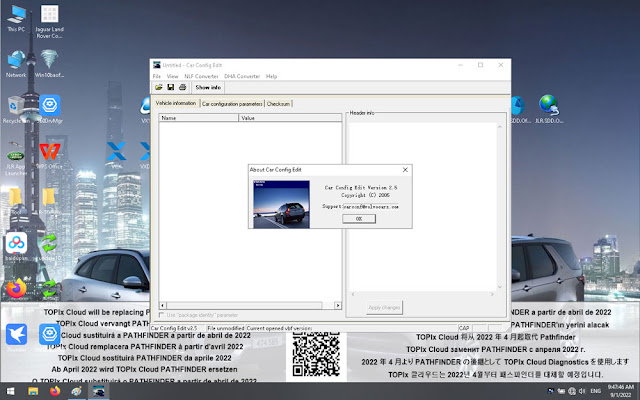
Car Config Edit 2.5
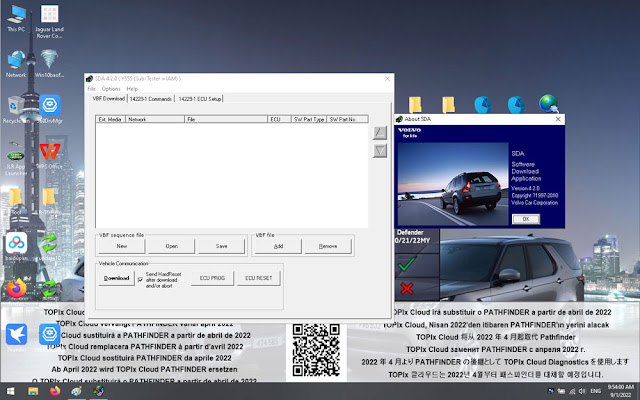
SDA 4.2.0
SDA 4.2.0 is an application released by the software company Volvo Car Corporation.
VXDIAG Toyota Unable to Connect VIM Solution
Problem:
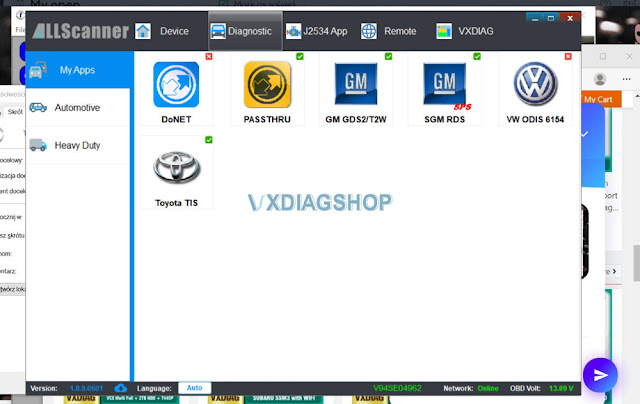
I have got the vxdiag vcx nano toyota techstream 16.20.023 and driver installed. But unable to connect vcx nano with techstream software.
Error Unable to connect to VIM
Any solution?
.jpg)
Solution:
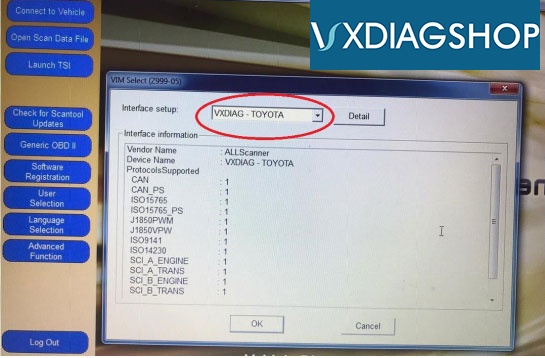
If have installed passthru and Toyota driver in VX Manager, delete vx manager and reinstall again.
Update license and firmware.
Then VXDIAG Toyota will be shown in VIM Selection.
Feedback:
Yes, uninstall and reinstall vx manager, it is now connected.
VXDIAG Techstream V12 Not Connect with Car Solution
The latest Techstream goes to V17 but many people prefer using v12 which allows various customize settings. V12 has been tested working great with vxdiag vcx nano Toyota interface.
If techstream v12 does not recognize vehicle (have to manually input) and does not allow to change any setting, check following:
Update vx manager to latest version on www.vxdiag.net
Update firmware
Update license
The main screen of VX Manager, where it can be updated and also refreshed the license.
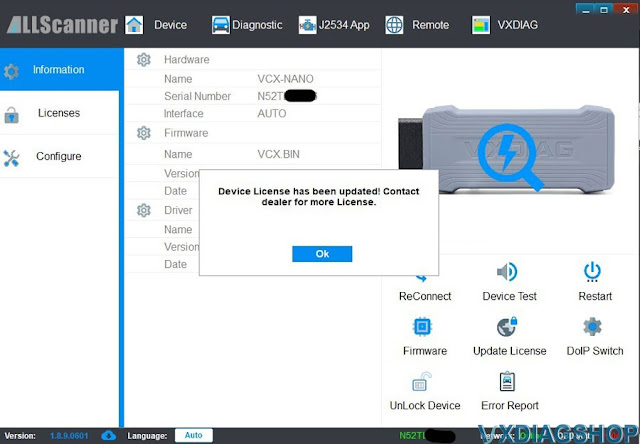
Click on "Update License" and "Update Firmware". Be careful to use USB connection during upgrade procedure.

License update confirmation:
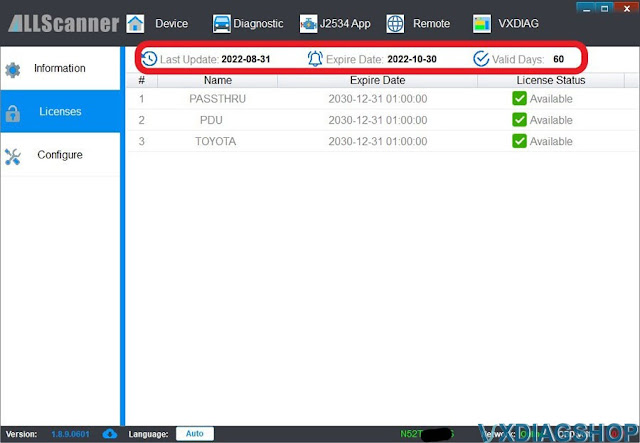
The license page:
The configuration in TechStream: Toyota or VXDiag is the same, see the DLL at the bottom

Verification that TechStream is working properly:
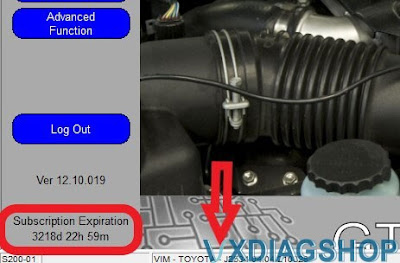
If still not working, contact www.vxdiagshop.com for technical support.
How to Install Honda HDS Software for VXDIAG?
Allscanner VXDIAG tutorial: how to install VXDIAG Honda HDS (Honda Diagnostic System) software.
HDS 3.101, 3.102, 3.103 and later versions share similar procedures.
Devices affected: VXDIAG VCX SE Pro 3 in 1, VCX Plus Honda multi tool, VXDIAG full etc Honda scanners
Software including:
HDS 3.102.051
iHDS 1.004.012
J2534 Rewrite
1.00.0015
Immobilizer Setup Tool
vx manager
Steps:
1. Install HDS setup
2. Install iHDS setup
3. Install J2534 Rewrite setup
4. Install ImmobilizerSetup Tool
5. Install VX Manager
6. Run iHDS
NOTE:
If for diagnosis purpose only, after installing HDS setup, skip to Step 5, then run HDS from desktop. Don't need to install iHDS and J2534 rewrite.

Procedure:
Step 1: Install HDS setup
Download HDS software 3.10x
Open HDS 3.10x software folder
Create 3 folders (HDS, iHDS nad J2534
rewrite) and unextract HDS, iHDS and j2534 rewrite zip. files to corresponding
folders.

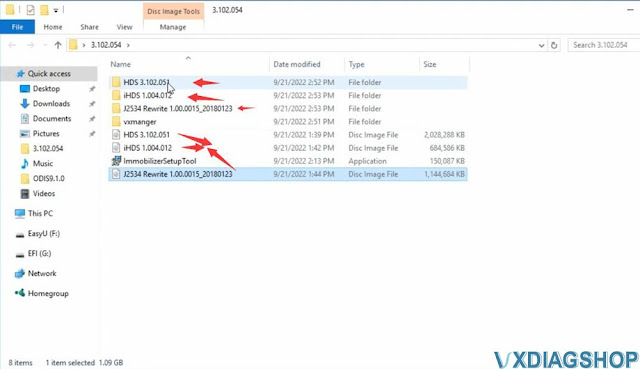
Open HDS 3.102.051 software
Install HDS setup
Accept license
agreement
Select destination: Other (General)
Select Country
Inout
Dealer code: 12345
Select setup language
Configure HDS
and installing MVCI
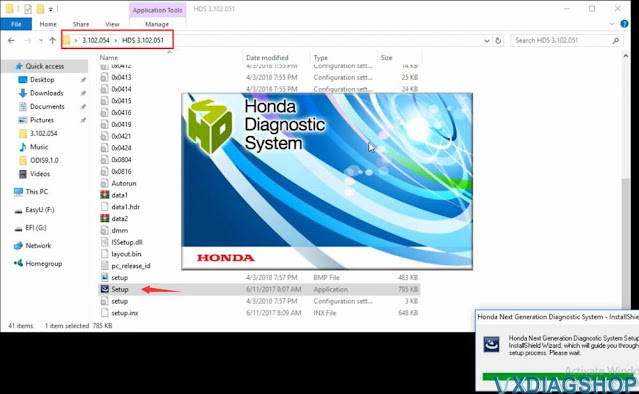
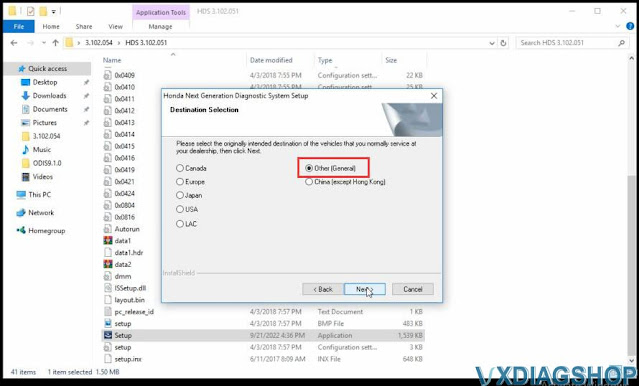


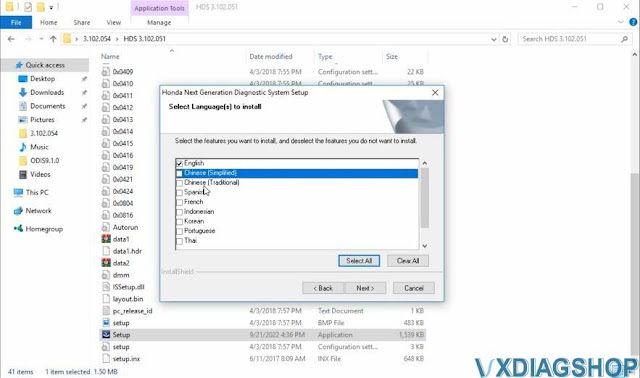

Step 2: Install iHDS setup
Open iHDS 1.004.012 folder
Install iHDS setup


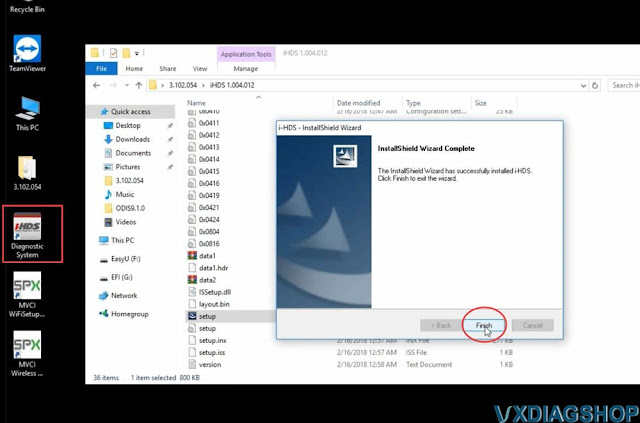
Step 3: Install J2534 Rewrite setup
Open J2534 Rewrite folder,
Install J2534 Rewrite setup
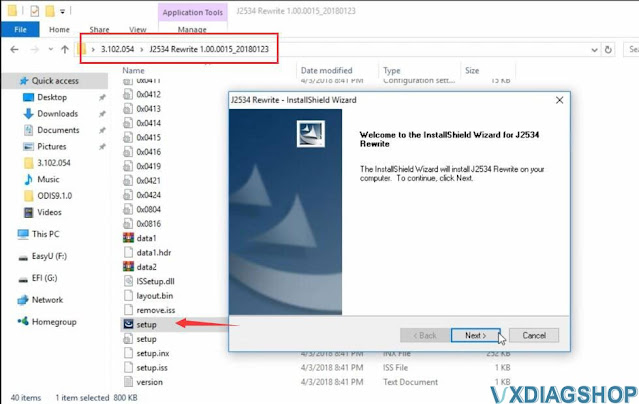
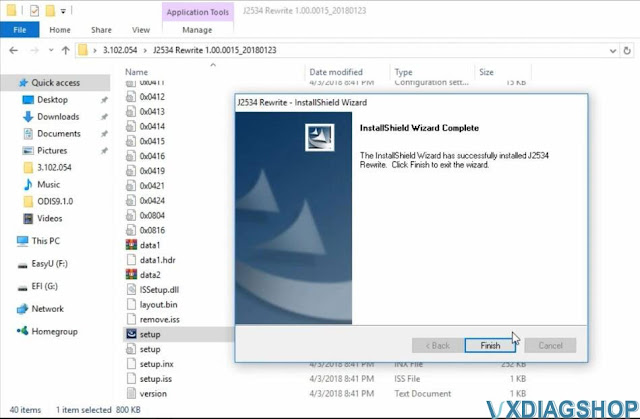
Step 4: Install ImmobilizerSetup tool
Install ImmobilizerSetup Tool

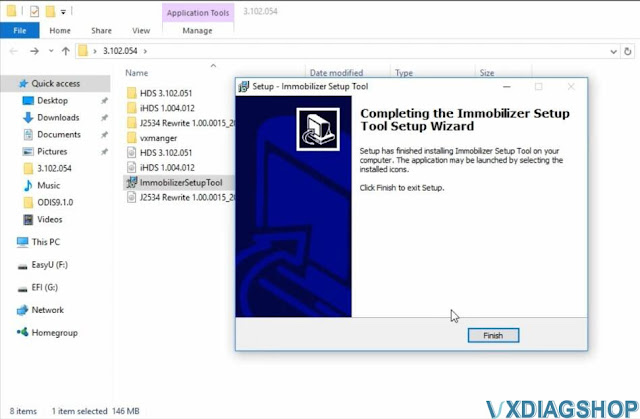
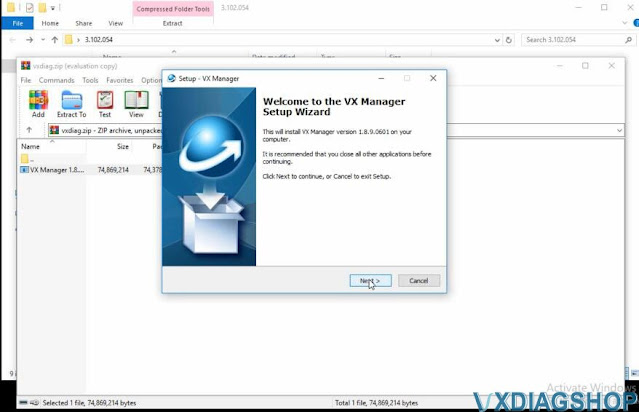
Step 5: Install VX Manager
Install VX Manager and install Honda HDS driver
Installation completed

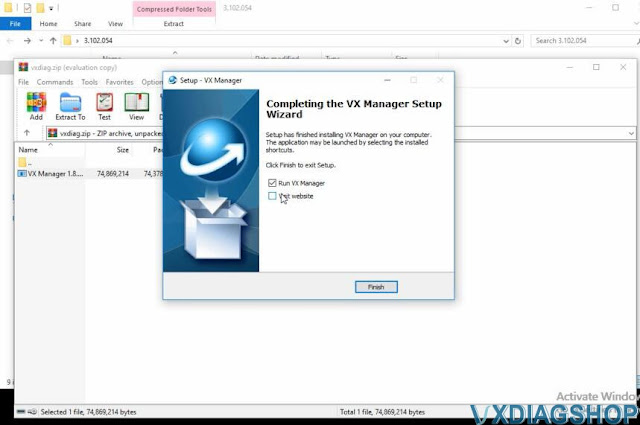
Connect vxdiag honda interface with laptop
Run vx manager to check connection status
Step 6: Run iHDS
Run iHDS software from desktop
Select interface type as MDI2.

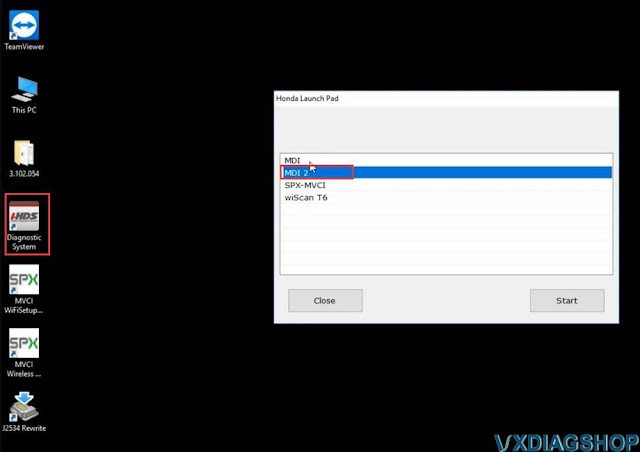

Software is ready to use.
http://blog.vxdiagshop.com/2022/09/22/how-to-install-vxdiag-honda-hds-software/
VXDIAG GM GDS2 Software Update to V2022.05
Good news!!! New version V2022.05 GDS2 has been tested working fine with vxdiag vcx nano gm scanner.
Software version:
GDS2 V2022.05 (NEW)
Tech2WIN 16.02.24
GM GDS2 Languages: English, Spanish, French, Italian, Portuguese,
Netherlands, Russian, Arabic, Japanese, Chinese, Vietnamese
GM Tech2win
language: English
Affected vxdiag tools: vxdiag vcx nano GM USB/Wifi, vcx se pro, vcx plus full etc
Software Download:
GDS2
V2022.05
incl. GDS2 patch and GM VCI manager
VXDIAG GM GDS2 and Tech2Win Installation Manual
GDS2 2022.05 software including:
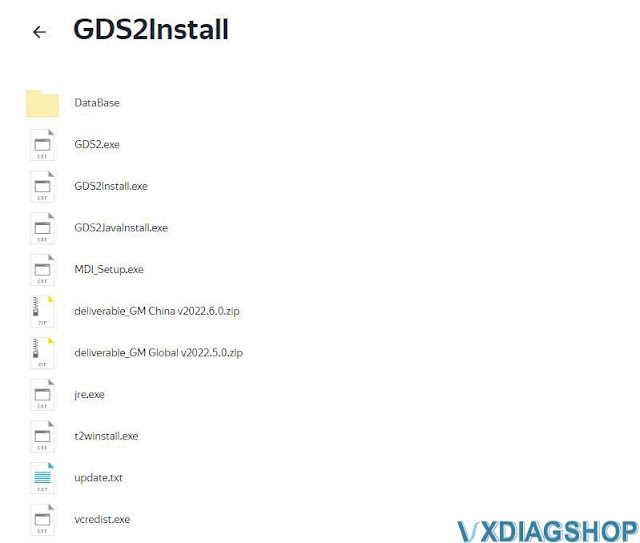
GDS2 database update to V2022.05
GM China V2022.06.0
GM Global V2022.05.0
Opel/Vauxhall V2020.1
Sabb V2020.4
VINFAST V2021.4
