VXDIAG VCX NANO Toyota & Godiag J2534 Which is Better
Vxdiag vcx nano Toyota and Godiag gd101 j2534 which is a better diagnostic cable for Toyota & Lexus?
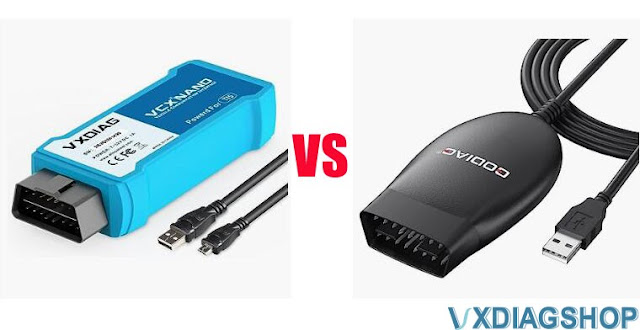
Both are compatible with Techstream software.
VXDIAG VCX NANO emulates Techstream like OEM VCI, godiag J2534 just works as j2534 passthru.
According to users' report, godiag j2534 is not fully compatible with techstream, even after using their drivers.
1).
Beware, Avast and then multiple other antiviruses on virustotal marked the driver program and the Techstream software available for download from their website as having trojans. It will read codes, but don't expect to be able to change vehicle configurations with it (tried on two lexus, neither worked – bought a VXDiag vcx nano toyota cable after buying this and it worked flawlessly – but is much more expensive). Godiag wouldn't recognize my LS400 (would read as LS430) nor RX350 (had to manually do it) when plugging in, VXDiag got both of them right on first try.
2).
I purchased godiag cable because it looked better than the cheap clear J2534
cables you see online, primarily wanted for Toyota techstream to be able to
clear codes and do some customize features on my vehicles.
Note that this
WILL communicate with your vehicle however it can basically only "see"
things.
It cannot and will not perform any setting changes, cannot
communicate with a vast # of computers etc and you cannot do any programming
with it.
If you need something just to see codes than this will work fine but
it is not the universal tool for performing any functions.
3). With vxdiag vcx nano you can perform online programming with Toyota online subscription, however, godiag j2534 cable does not work with an online subscription, only works with offline techstream.
So godiag j2534 is just for starters, for professional use, better go with vxdiag.
VXDIAG Benz Cannot Open WIS EPC in VMware?
Problem:
I got the vxdiag vcx se benz and xentry HDD. When I tried to run WIS/EPC software in VMware, it did not load.
Error while powering on: unable to open file. Any solution?

Solution:
You have to enable virtualization in BIOS in order to run VMware.
How to Enable Virtualization?
To enable Virtualization in Windows 10/11, ensure that the device supports virtualization by checking the BIOS (Basic Input Output System) or UEFI (Unified Extensible Firmware Interface) firmware settings as follows:
Through Command Prompt
- Run command prompt
- Enter the command systeminfo.exe
- The command will gather system information and display the result
- Check Hyper -V Requirements
- If Virtualization Enabled in Firmware shows Yes, Windows Sandbox can be used.
How to Enable Virtualization in BIOS?
- Reboot the computer
- While the system is restarting from a black screen, enter BIOS by pressing the hotkey. The hotkeys differ depending on the brand of the computer used. Usually F1, F2, F3, F10, Esc or Delete keys are the hotkeys to enter BIOS
- Navigate to Advanced Tab and press Enter to continue
- Select Virtualization and Enable
- Save changes and reboot the computer
- BIOS can also be accessed through Windows in Settings.
How to Enable Virtualization Windows 10?
1. Go to Windows Settings
2. Click on Update and Security
3. Click on Restart Now from the Recovery Tab to enter Windows Recovery Environment
4. Click Troubleshoot > Advanced > UEFI Firmware Settings.
5. To continue, click Restart
6. BIOS Settings will be displayed. Select Virtualization and enable it
VXDIAG VCX SE 6154 Works with ODIS V23
User feedback: vxdiag vcx se 6154 was tested working fine with odis service v23.01 by vxdiagshop's customer.

Compatible device: VXDIAG VCX SE 6154, VCX NANO 6154
Update vxdiag 6154 driver to latest version

NOTE: ODIS V23 is not yet available in our store. Test by your side.
The program does not work in Virual machines. ODIS Service 23.0.1 works only on Windows 10 or more and only with VAS6154 genuine devices or with passthru interfaces.
Can VXDIAG VCX SE J2534 work with TgFlash?
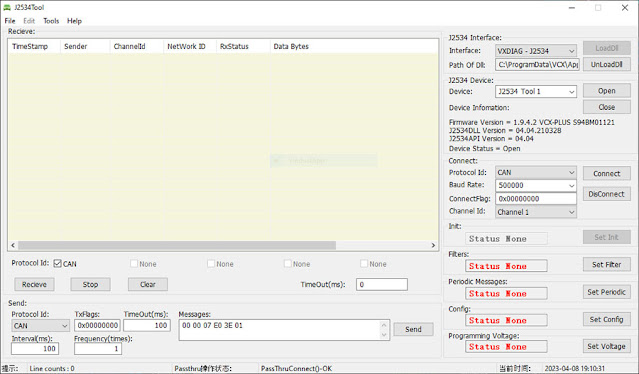
Tgflash is a complete solution for ECU flash memory reading virtual reading and reprogramming. Tgflah will communicate with ECU via J2534 passthru devices, Openport, mongoose, Scanmtaik, ENET cables. Can i use vxdiag vcx se j2534 passthru with Tgflash?
Here is the clue.
Some users have tested vxdiag with tgflash but all had no luck.
It will display this J2534 interface it is not compatible with Tgflash.

VXDIAG ODIS Installation Will be Removed Solution
Problem:
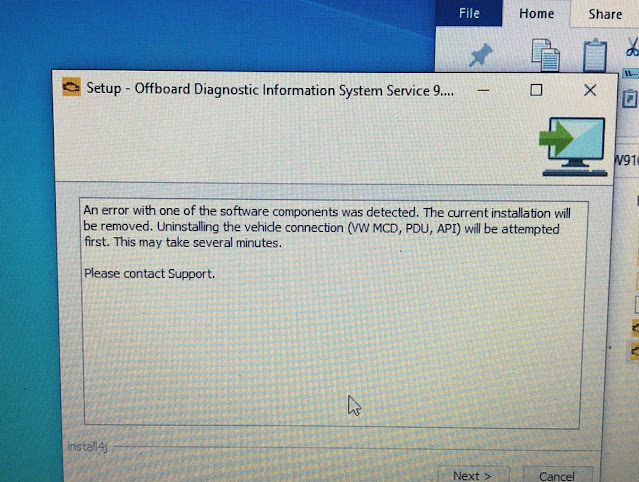
When I installed VAG ODIS 9.1.0 software setup for vxdiag vcx se 6154, it threw an error with one of the software components detected and installation will be removed. Tried 3 times, all the same. Any advice?
Solution:
Your ODIS setup installation file is not completed.
Delete and download full version ODIS 9.1.0 here.
Run the application installation package as an administrator.