VXDIAG Benz 2024.03 Xentry No Access Authorization Code?
Problem:
One of our customers had a problem running Xentry 2024.03 for VXDIAG VCX SE Benz scanner.
When running xentry software, it said ‘No Access Authorization Code’.
Update firmware, reinstall C6 driver, run FIX recovery on desktop, all no luck.


Solution:
If had ‘No Access Authorization Code’ error, needs to disable security boot in BIOS setting.
How to disable Secure Boot in BIOS?
Follow the steps below: Boot and press [F2] to enter BIOS. Go to [Security] tab > [Default Secure boot on] and set as [Disabled]. Go to [Save & Exit] tab > [Save Changes] and select [Yes].
www.vxdiagshop.com
How to Install VXDIAG GM GDS2 2024.5.8 Tech2win?
Here vxdiagshop.com shows you how to install VXDIAG VCX NANO GM GDS2 2024.5.8 and Tech2win software on Windows 10 (64 bit) system.
Check software and download the information in the previous post
Main steps:
Install GDS2
Install DPS patch
Install Tech2win
Install VX Manager
Run Software
Procedure:
1.Download and unzip software folder
Open GDS2
folder
Install GDS2AutoInstall.exe until
completed


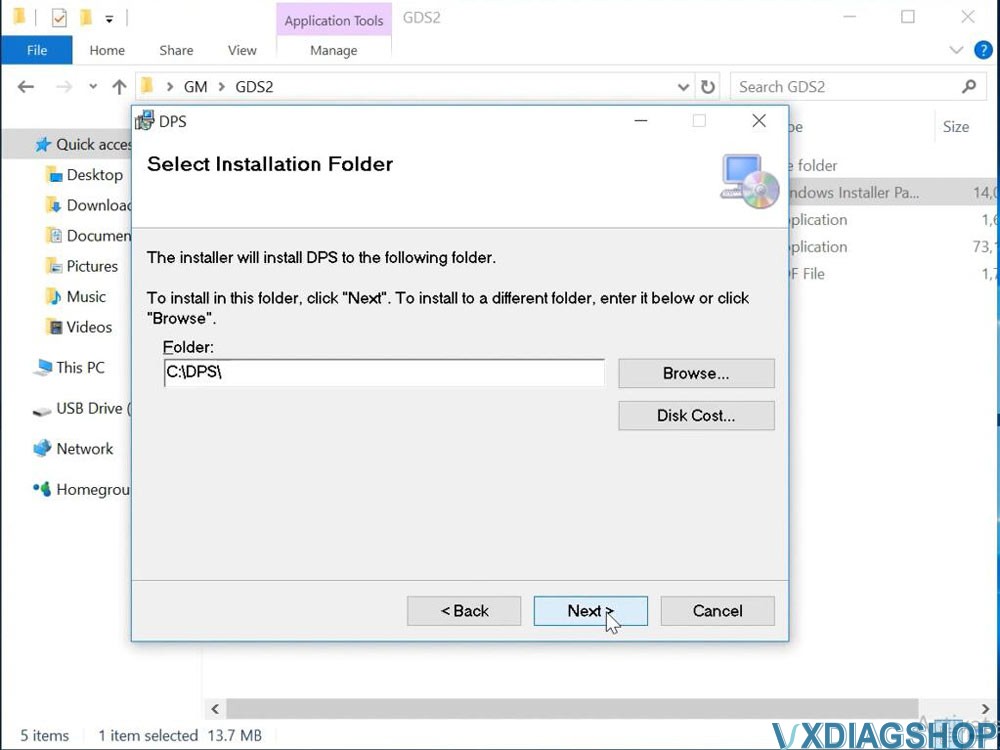
2.Install 2.gm_installer.exe to install DPS patch
Then delete DPS shortcut on desktop.
NOTE: The gm_installer.exe here is used as DPS patch for GDS2.
If not installed the DPS patch, system will report PC Software Installation Error when running GDS2.
You can also install DPS 4.52 software but it will ask for license. Need to purchase license from official. If don’t want to purchase license, change date to 2023 or use this dps patch.


3.Run Tech2win
folder
Install AutoInstall.exe
If Windows
asks to install virual com port driver
Press Install
Tech2win Install
OK


4.Install VX Manager 1.8.9
Connect vxdiag vcx nano gm scanner and check device is well-connected


Go to Diagnostic, Install GM GDS2/T2W driver

Update firmware and license to latest version.
5.Run GDS2 from patch on desktop

Start diagnosis


VXDIAG VCX FD vs Autel vs Launch vs Cardiaq3
Are you looking for a J2534 device that support both CAN FD and DoIP protocols?
VXDIAG VCX FD (VCX CAN FD), Autel Maxiflash (new VCI, JVCI+, Xlink etc), Launch smartlink and Cardiag Plus 3 all these J2534 devices support CAN FD and DoIP protocol. Which one is better?

Price:
VXDIAG VCX FD is the cheapest option among these. Hardware without license takes $169 only.
Autel, Launch and Cardiag+ 3 are expensive ($1,500+)
Software:
VCX FD not only emulates software for BMW, Benz, VAG, Porsche, JLR, Honda, Toyota, Subaru, PSA, Renault, Nissan, Ford, Mazda, GM, Volvo but also used as J2534 passthru device for 3rd party software (pcmflash, bitbox etc) and OEM software for online programming (need subscription).
Autel MaxiFlash VCI and Launch Smartlink should work with their own tablets to perform universal diagnosis/coding functions. The VCI can also be used as J2534 passthru for OE programming. These VCIs usually come with a tablet device and are not for sale separately.
Cardiag+ 3 only works as J2534 passthru device, it cannot emulate OEM software.
Update:
All these VCI firmware allow online updates.
Connection:
VCX FD connects via USB, WiFi, WLAN and DoNET (remote diagnosis).
Autel and Launch X431 VCIs also connect via USB, WIFI/Bluetooth/Ethernet
Cardiaq+ 3 supports USB connection, Bluetooth version also available.
License:
You can add multi brand license to VXDIAG VCX CAN FD.
Autel and Launch does have license, their scanners covers all major brands. Update is expensive.
Cardiaq+ 3 does not have license.
VXDIAG VCX FD is the cheapest and effective J2534 devices for starters.
Failed to Open VXDIAG Toyota Techstream Patch Solution
Problem:
One of our customers bought the vxdiag vcx nano Toyota scanner when he tried to crack Techstream in Win10, he managed to run the patch – Toyota Launcher.exe– as an Admin, it runs and see that Toyota picture, but then nothing happened.
When opened Techstream and it said I had 3 days until he had to introduce the activation key.
What is the solution?

Solved:
Set-up Techstream as usual until it asks you for the Serial Key AND then always open Techstream using Toyota Launcher.exe
The long one in case you didn’t get it:
First of all, Go to Control Panel > System and Security > Windows Defender Firewall > Turn Windows Defender Firewall On and Off (left side menu) AND turned everything off. The Toyota Launcher.exe will be identified as a trojan otherwise and you won’t be able to run it.
Techstream installed – fresh install, copied Toyota Launcher.exe in the Bin folder for Techstream (see tutorial) , VX Manager installed and updated VXDiag dongle to date.
Now, technically Toyota Launcher.exe should open Techstream and you should do the Techstream set-up – company info, location etc. That’s what the VX Diag tutorial tells you to do. But in his case it did nothing. He saw the Toyota picture/logo on grey and they it closed and nothing else. SO:
He opened Techstream from the original exe icon shortcut on
desktop and did the set-up filling the boxes exactly like in
the tutorial (enter the same numbers and whatnot – until it asked for the
Product Key. CLOSED Techstream. Then went into the Bin folder of Techstream
where you’re supposed to copy Toyota Launcher.exe and double clicked
it again and now it should open Techstream after a few seconds. Now you can see
2d23h59m in the left corner, no key is required and you can connect to your car.
Always use Toyota Launcher.exe to launch the
program. Delete the original icon shortcut on your desktop and make a new one
based on the launcher exe.
The End.
PS: turn on your Win Firewall Defender after you’re done. Toyota Launcher.exe will work after that. If Defender still bothers you, then add the .exe as an exception, go to defender and search the warning and tell the program to leave that .exe alone.
Hope it helps.
VXDIAG GM GDS2 Update to v2024.05.08
The latest GM GDS2 software V2024.05.08 was tested by vxdiagshop.com engineer without issue.
GDS2 V22.6.01200
GM Global V2024.05.08
GM Global V2024.05.08
GM China V2023.10.12
Opel/Vauxhall V2023.4.0
Compatible devices:
VXDIAG VCX NANO GM USB/WiFi, VCX CAN FD GM, VCX SE, VCX DoIP for GM, MDI2 Clone etc
Supports some Buick Cadillac Chevrolet models till year 2025.


Where to download GDS2 2024.05 software?
Contact vxdiasghop.com customer service to download latest GDS2 software.
Skype:vxdiag.com
Email:sales@vxdiagshop.com
WHATSAPP:0086-18064450969
Attention: Software downloads are exclusively available to our customers.
Verification Required: Please provide your order number to access the download link.
NOTE:
1. Select the device type as MDI2.
2. Must install DPS software together with GDS2 2024.05.08. Otherwise will report PC Software Installation Error when run GDS2.

3. For DPS, two ways to get rid of license expiration problem.
1). Restore the computer date to year 2023.
2). Purchase latest license from DPS.